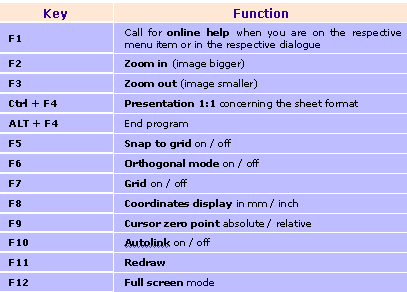
As for the graphical interface, we must of course not forget the function keys. They too provide fast access to frequently needed actions. You will most certainly often use the <F4> key for optimal adaption of your drawing to the given window. Or you can work with the <F2> or <F3> keys for fast zooming, <F5> to switch the snap to grid on and off or <F7> to switch the grid on and off.
Download the file in the requested format (PDF,Excel) from our web-server in order to print out or work on keyboard templates:
www.wscad.com/help/
log in with Username and Password .
The <F1> key is for online help. It provides access to the complete manual and gives addition updated information and tips.
Apart from the normal text input and the function keys, you can also reach all menu commands via the keyboard. All you have to do is press the <Alt> key and the corresponding letter from the menu. In Windows you can also break off processes with the <ESC> key.
In drawing processes, the four cursor keys are in line with the movement of the mouse. It is sometimes easier to position the cursor with these keys than with the mouse. By pressing the <Ctrl> key, the cursor keys can be accelerated.
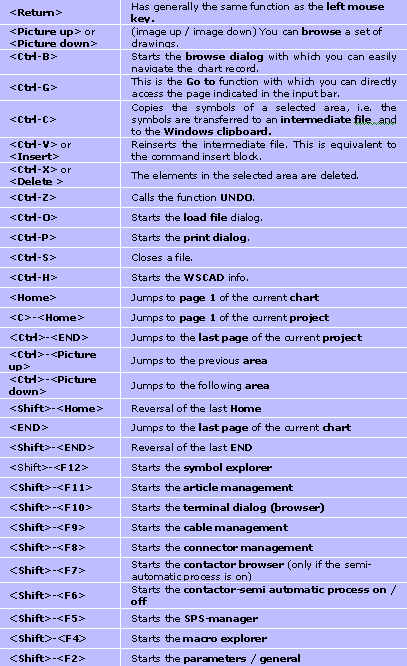
Here is an overview of the available keyboard commands
Note
If a key input is preoccupied with text, then this text is already selected. This can be recognized thanks to the inverted representation. If you want to keep the preselected text and only modify it, you have to previously position the cursor with the cursor keys (or <Home> or <End>). If you enter text directly, the previous text is immediately deleted!