
The menu bar, together with the command toolbar, gives access to all the functions and commands of WSCAD 5.
Simply click on a command with the mouse and a pull-down menu appears. The same effect can be achieved by pressing the <ALT>-key and then the underlined letters in the appropriate menu item:
Some commands may appear in light grey; this means that these commands cannot be used at the present time. The small arrow on the right-hand edge indicates a further sub-menu which can be accessed in different ways according to the operating system.
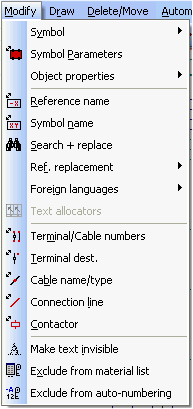
The menu can also change to suit the current conditions (e.g. in the symbol editor).

Hint
During certain actions the menu is disabled. The whole menu bar appears in light grey and no command can be activated. The menu bar becomes enabled again as soon as the action has been completed, or cancelled with the <ESC> key.