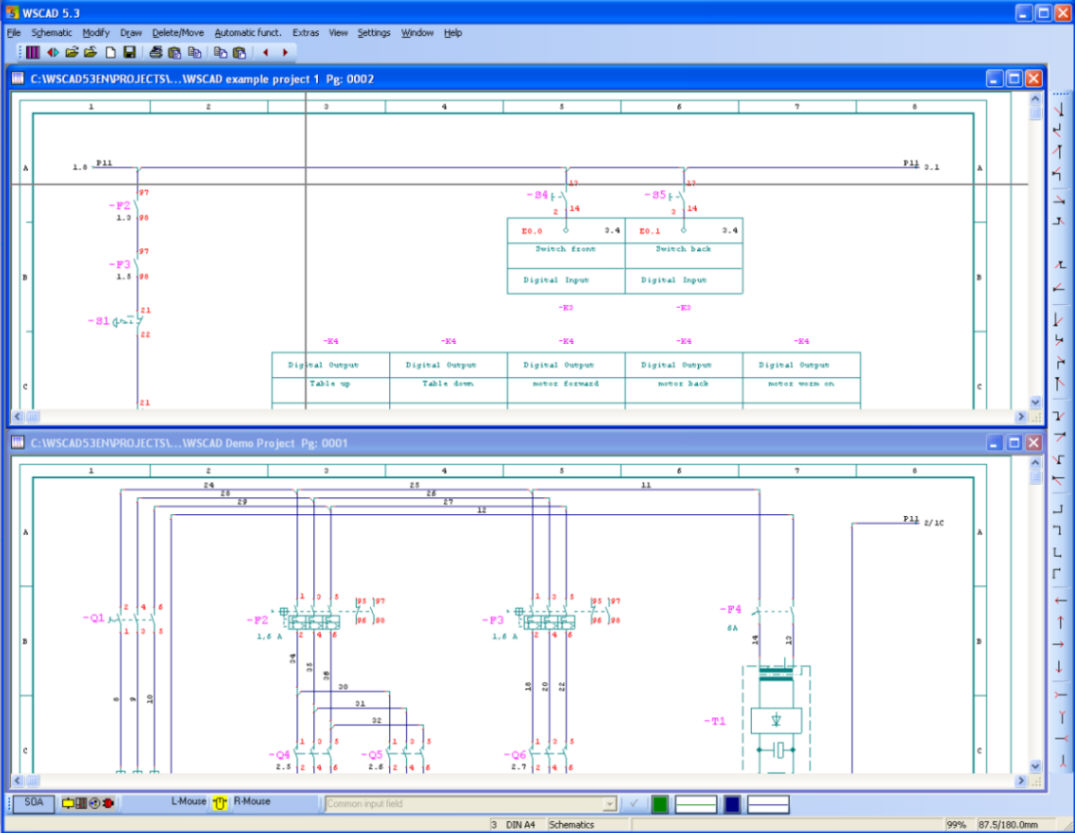
In WSCAD 5 you work with several drawing windows. The following example shows a typical drawing window.
The title bar shows what is being displayed. With the button in the upper right hand corner you can minimise the drawing window (put it down to an icon), maximise it (bring it up to full size) or close it completely. When a window is closed, any changes are saved.
Hint
The appearance of the buttons depends on what version of Windows you are using.
Each page on the circuit diagram is assigned to a drawing window, i.e. a page cannot be displayed in two different windows at the same time. Each window takes up space in the drawing memory, which of course increases the amount of memory required. You can therefore configure WSCAD 5 to work in multiple window mode.
With functions which involve other pages (e.g. ‘Cross-reference navigator’ or ‘Page up/down) it is important to check first that the page is not already linked to a drawing window. If this is the case, the relevant window will be made active. This may have the effect, with the ‘Page up/down function for instance, that a second drawing window in the background is made active.
Each drawing window can be moved, resized, tiled side by side or overlapped with others within the main window.
Hint
In the menu under the command ‘Window’ you will find a range of commands which will enable you to arrange the windows on the screen. The menu also includes a list of all open windows.