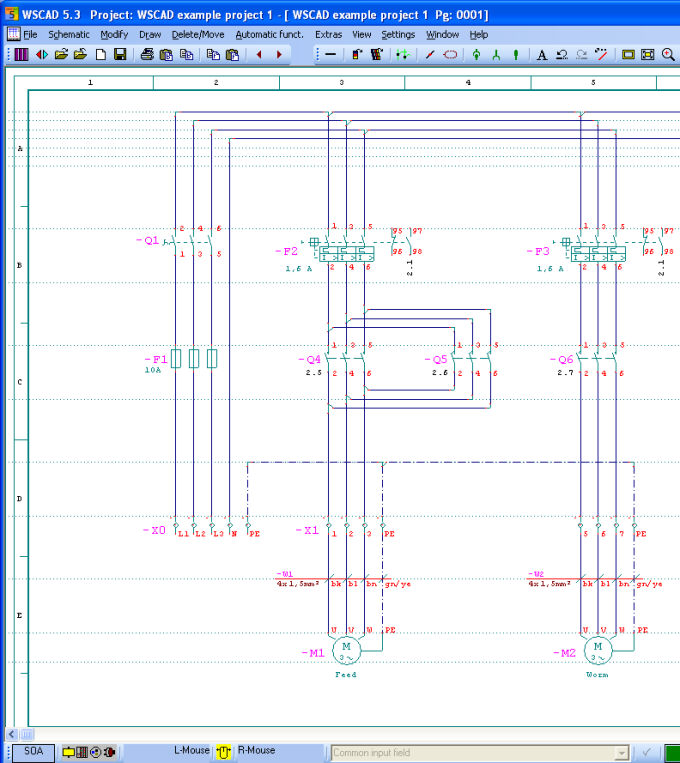
After the program starts, WSCAD 5 presents itself as shown in the chart.
The above illustration represents only one possible option, as you can adapt the screen layout to your personal preferences. The main window shows the name of the WSCAD application and the version number.
• Title bar
• Menu bar
• Below the menu bar are a few function bars; in this case, two command bars
• On the left and right of the screen are further function bars; in this case, library bars
• In the free client area, there is a drawing window
• At the bottom is the information bar (with input field)
• At the very bottom is a fixed status bar
You can of course modify the size of the overall window
yourself by the usual methods (with the Windows button in the top right
corner or by dragging the border of the working window with the mouse).