
Toolbars enable specific actions to be started up directly and rapidly. The appearance of the individual buttons is always intuitively linked to the relevant action.
Each toolbar can be “docked” or it can be positioned as a “floating” window. You can of course display several toolbars or delete, move or insert buttons within a toolbar, with virtually no restrictions.
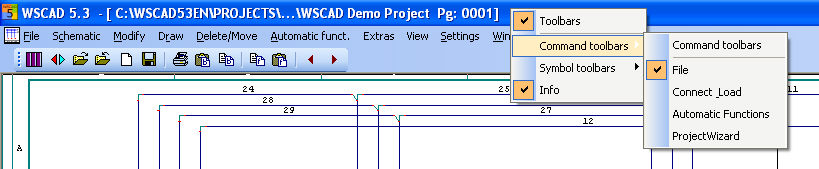
Right click in the upper band you will get the toolbars.
There are two different types of toolbars:
Command toolbars allow the rapid execution of commands which would otherwise need to be accessed via the menu bar. We recommend combining functional groups of commands.
For every available command there is a corresponding graphic symbol within WSCAD 5 which is inserted automatically when you allocate the command to a button. The button display is linked to the relevant command: if the command is not available (it would be shown in grey in the menu) its button is also shown in grey and cannot be ‘pressed’.
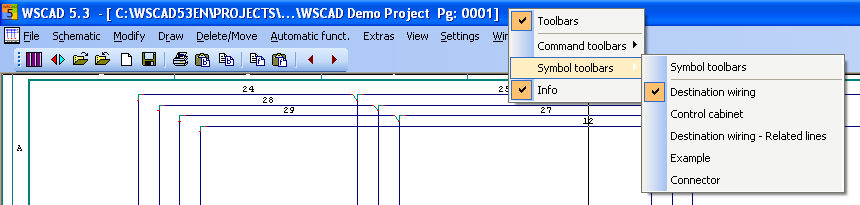
Within the Symbol(Library) toolbars components from any of the libraries can be allocated to individual buttons.
The component is loaded simply by clicking with the mouse and it can then be placed immediately. You can make the allocations yourself within the Symbol editor. It is also quite easy to apply your own symbol to a button. As a maximum of 200 toolbars can be handled, you have the facility to create various toolbars in advance and call them up only when needed.
Note
The buttons of the Symbol toolbars which are supplied with the program are available in two different standard sizes so that you can choose the optimal size for your screen. When creating a new toolbar you can also select other sizes.