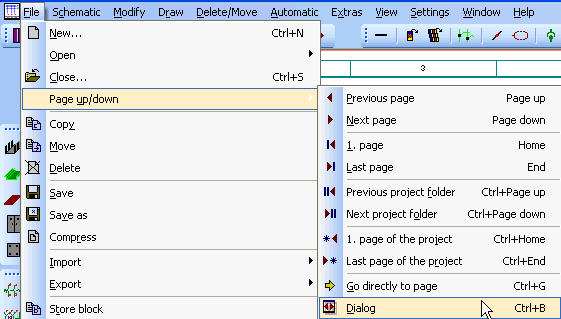
Normally all WSCAD files with the same file name are shown whose drawing window is active.
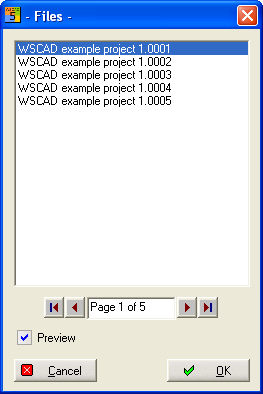
Indicates in the dialogue all identically designated files. This files must be stored in the same folder.
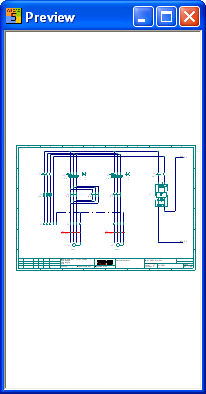
Dialogue in the Schematic mode
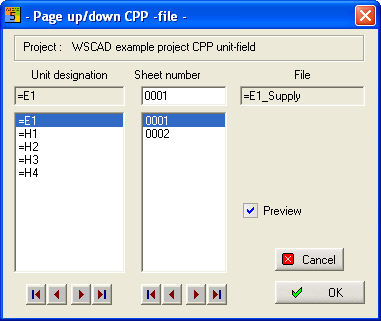
Dialogue in the CPP mode
hint
During page up/down the schematics are stored
Select from the dialogue the target sheet and click on OK, or you select by doubleclick. The sheet is displayed automatically and old sheet will be secured. The sheet method is simpler and faster by using page up/page down from keys.
Previous page and Next page (Page up - Page down)
The drawing of the active window will be saved and the next drawing will be shown.
1.page and Last page (Home - End)
You see the first page of an actual folder or the last page.
Previous project folder and Next project folder (Ctrl+Page up - Ctrl+page Down)
You see the first page of the previous or next project folder in order of the project management.
1.page of the project and Last page of the project (Ctrl+Home - Ctrl+End)
You see the very first page of the project or the last page.
Go directly to the page (Ctrl+G)
Enter direct the page number in the edit field. If you have a CPP-project you start with unit-designation separated by a blank from the page number (e.g.: =H2 5).
Hint
When the chosen page is opened in another window and is perhaps hidden, the active window is unchanged and the chosen page is activated in it.