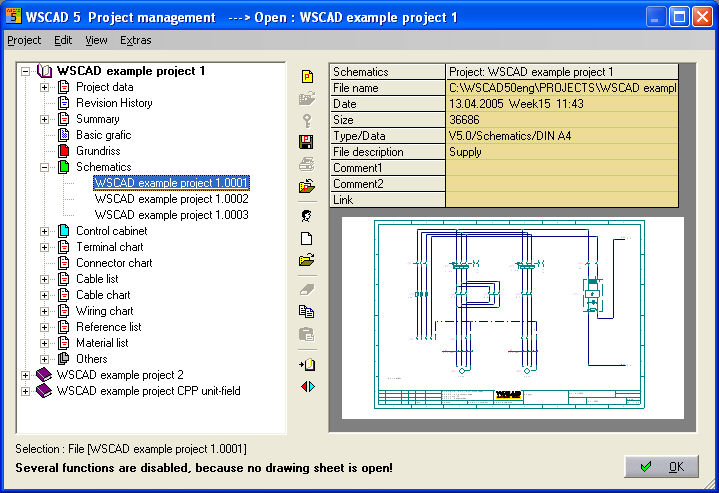
The PM starts under the menu item File / Project manager. The PM draws project information from several ACCESS databases included in the preset project directory.
In the header bar you can always see the current status of the Project manager (here, for example: -> Open: WSCAD Example project 1 ; this means that the project WSCAD Example project1 is active).
Additionally you can see at the top right the Windows control symbols Maximize and Close.
Note
The Project Manager cannot be placed onto the Taskbar !!!
In the left-hand window you can see the project structure (tree) with the project name as the description and the individual folders (shown in color). These in turn contain files of the corresponding type.
Note
The individual folders are not directories as such but simply a filter for display purposes within the Project Manager.
In the right-hand window you can see the project settings fields or the project data for each selected project, folder or single file. These project data fields can be used for automated listings in forms using the text allocators. (not in Basic module)
At the bottom of the screen the display shows the currently highlighted object and the contents of the clipboard. This is also where hints are displayed when you select a command or a function.
In the center of the screen there are some buttons for menu commands, for easier access to frequently used functions. The activity of each function is dependent on the status of each project (whether open or not) and on the current selection in the left-hand window.