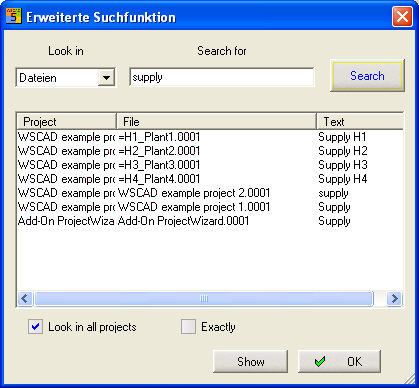
The menu item Edit/View contains the additional command Search in order to find projects and specific texts in the projects more easily.
It will only searched the first characters in the selected table or field !
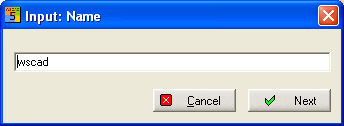
A text entry dialog is displayed. If nothing was selected previously in the Project data table, the program always searches for the Project name, otherwise it searches for the text in the Project data field currently selected in the table. It is enough to enter the first letters in lower case or capital letters. When the project is found, it is displayed in the Project window and selected and the dialog remains on the screen so that by Next, the search can be continued.
For example, the field Name has been selected here in the Project data table.
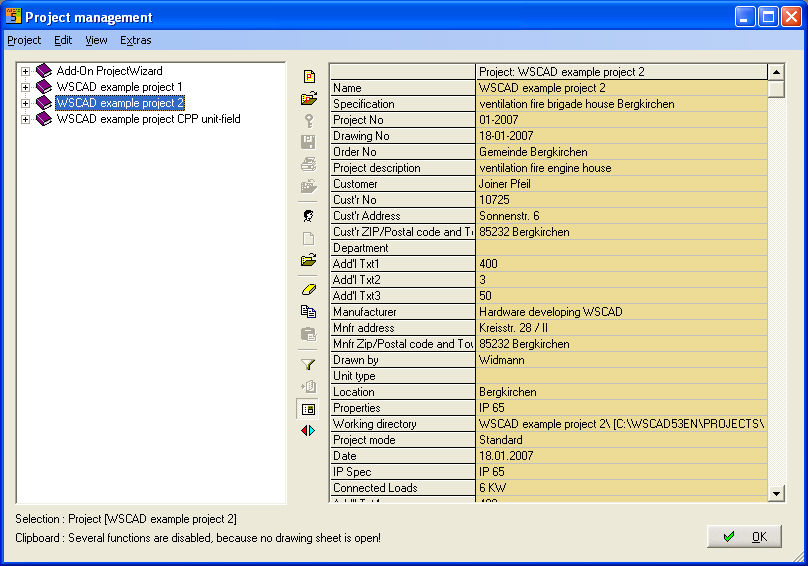
Now search in the selected field 'Name' for characters.
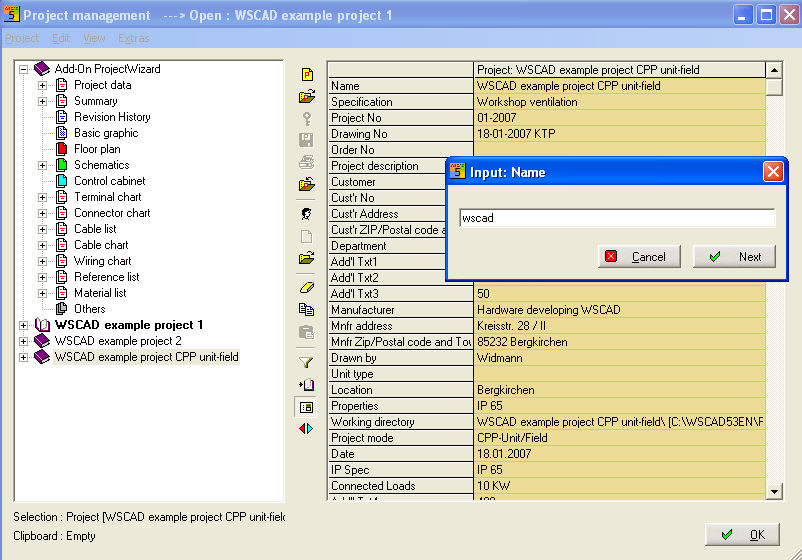
After clicking the Next button, the data of all projects will be searched for the Name one after the other.
Setting options starts a dialog of variable size concerning the text types in which you want to search. Either in the data of each file (e.g. file content - project data setting Files), in the partial project texts 1..5 (project data setting Partial projects) or in the commentary texts of the folders (project data setting Partial projects).
The text comparison can be switched to "Exactly", i.e. the search text must be entered precisely. The search can also be enlarged from the currently selected project to all the projects. By concluding with OK, the state is saved and restored at the next call. The command "Show" results in the display of the right project in the project manager.
Procedure
Start by setting the Filename and then enter the search text. After clicking the Search box, all found projects are listed with the files and the text. Then select the requested project. The Show box then selects in the project window the respective project containing the file.