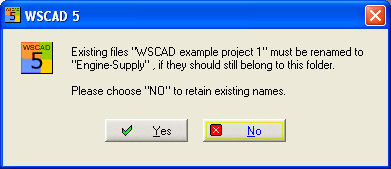
If you wish to change the filenames, then you can change one or more filenames here.
Method 1
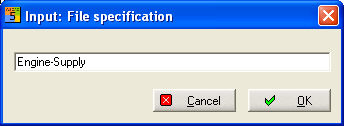
In order to do so, mark the filename(s) and select the menu option Edit / Rename. Enter the new filename in the File specification entry dialog.
After confirming with the OK button, the dialog closes and the marked files are renamed.
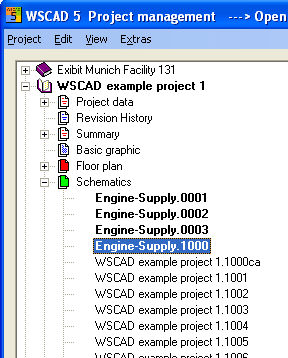
‘*’ and ‘?’ can also be used. For example, you can use them to correct a typing error e.g. if bintroller ventilation is renamed with co*, only the first two characters will be changed.
Caution
If the new filename no longer correspond to the specifications in the PM, these files will be filtered out of the folder view.
Method 2
If you wish to rename all the filenames within a folder, under certain circumstances, this can be a very large number of files. For this reason, click directly on the folder (e.g. diagram pages) and change the default filenames under the project information. Pay attention to the PM display at bottom left in regard to the number of marked files.
Example
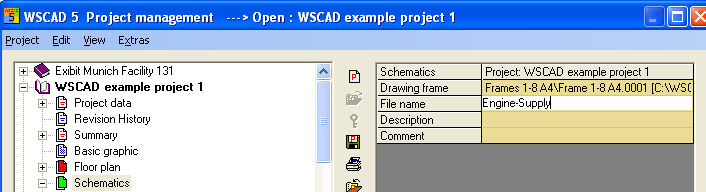
After making the entry, all filenames are renamed when you confirm the prompt with Yes.