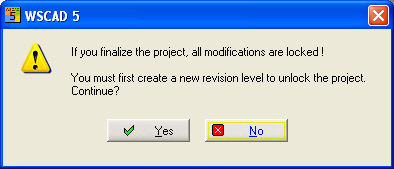
The status closed can be assigned to the current open project using the PM menu Extras (means: finished for the time being).
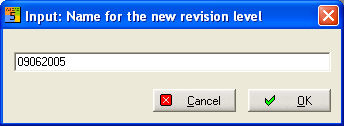
Activate the menu option, then the entry dialog appears in which you will have to enter a meaningful designation for the project status to be completed. We suggest using the current date set in the date format under Parameters / General / Miscellaneous.
A good variant is to name the first conclusion Initial setup and simply add characters (A and B) or numbers for subsequent change levels.
Caution
Pay attention to the information dialog which appears between each step. When assigning the identification, bear in mind the limited space in the drawing frame.
You will now be able to create a compressed file (zip) of the complete project status. This file is saved in the project path with a combination of project name and current date as the filename.
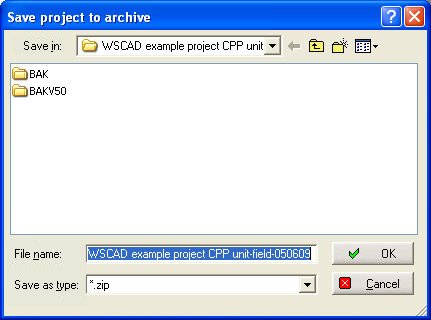
After clicking on the Save button, you will see a progress dialog which indicates the progress of compression.
You have now made a backup of your final project status
All files in the project are now in their final state, i.e. they can only be edited in the project via a revision level which has to be restarted. An indication of this is the shortened main menu. If you have the wild cards for the revision level on the diagrams then these will show the current status.
Hint
The files of a finished project are not provided with a write protect. Thus, when using the Project Manager, you are not prevented from accessing these files and carrying out changes in them.
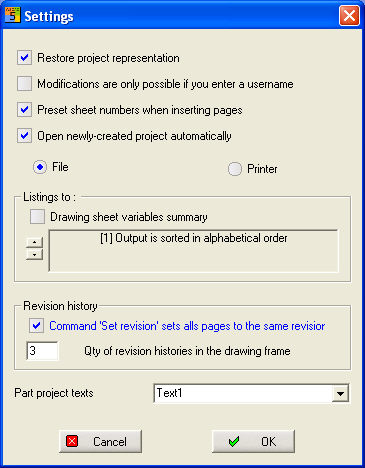
Due to the option Project conclusion, which sets all pages to the same status, all diagram pages of a project are assigned the identical project status and the display within the drawing frame is adjusted. This option is located under the PM menu option Tools / Settings.