Line
 With this line command,
symbols are electrically linked. You have
to connect the symbols with these lines, as only they are recognized
by the automatic functions (as opposed to those from the menu Free
drawing). Now click with the left
mouse button or Return
in order to set the starting point of
the line, and with each further click of the left mouse button,
you can change the direction of
the connection line. With a click of the right mouse button, you end the
current connection line.
With this line command,
symbols are electrically linked. You have
to connect the symbols with these lines, as only they are recognized
by the automatic functions (as opposed to those from the menu Free
drawing). Now click with the left
mouse button or Return
in order to set the starting point of
the line, and with each further click of the left mouse button,
you can change the direction of
the connection line. With a click of the right mouse button, you end the
current connection line.
Enter name of line
The dialog Enter name of line
starts in which you can define the name of the line, the connection, the
color, the section and the length of the line that is to be laid.
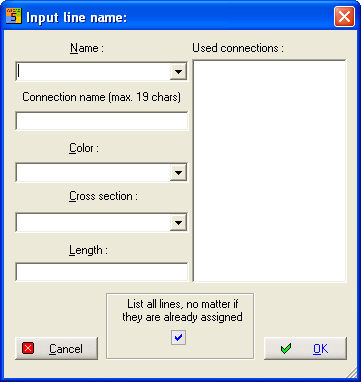
General information concerning the drawing of the line
The connections of the symbols in the libraries are all drawn
in the grid size. It is therefore
imperative that you switch on the snap
to grid (<F5> key
switches on / off, marked as F
in the information bar) if you want to hit a symbol connection easily
and precisely. In this manner, you have the connection lines under control.
Switch the automatic connection
on (<F10> key switches on
/ off, V as the third sign in the information bar). Then, if you work
in this mode, vertical or horizontal connection lines will be drawn automatically
when loading symbols. When symbols are loaded
or deleted, the vertical and horizontal lines are automatically
severed or closed.
Color of the line
Connection lines can be carried out in different colors. This depends
on the color for the connection lines set in the configuration (Parameters
/ Colors / Connection lines). The currently applied color can be changed
in the information bar before calling the menu. For lines that have already
been drawn, modification takes place subsequently via the parameter settings.
Compression / Cleaning
Please observe that the function File / Compression / Cleaning overlaps
and that broken lines are automatically corrected or put together. You
should, however try to draw only one line per connection during the drawing
process.
Line parameters
When creating an electric connection line or a simple graphic line (menu
Free Drawing / Line), the line parameters, such as color, line type and
line width (only graphic line) can be copied from an existing line. In
order to do this, set the starting point of the new line on a previosly
existing line and the above parameters will be copied from that line.
Note
If a connection line is automatically created when a node
is installed, the line parameters of the new connection line are also
automatically set.
See
Line name
Color settings
Line, square, circle and connection line
Destination wiring