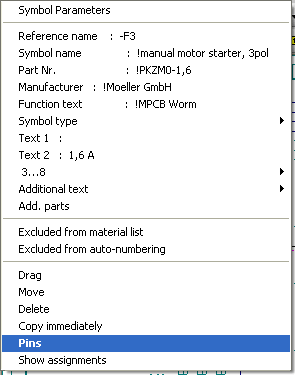
In order to start this process, activate the relevant symbol with the right mouse button. Then select Connections in the context menu.
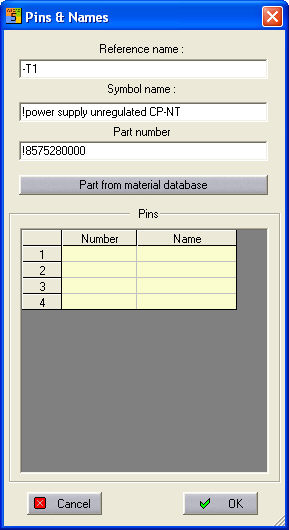
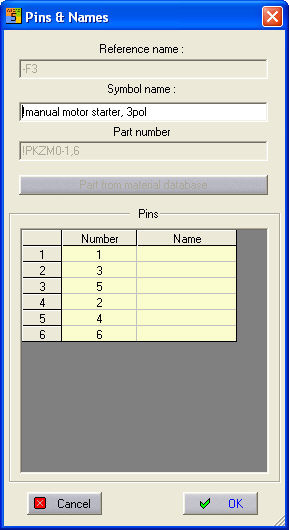
When you activate this command for a symbol, all parameters in the dialog are activated. However, the way this looks depends on the symbol type chosen. The symbol type affects the possible changes.
|
Symbol type Standard |
Symbol type Coil |
|
|
|
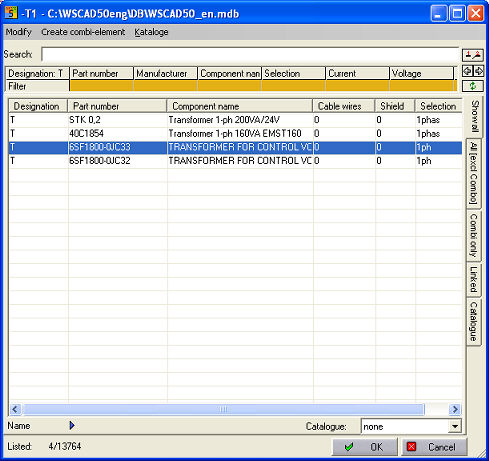
The name and number of the connection pin can also be edited. After ending the dialog by clicking on the OK button, the changed values are supplemented, changed or re-positioned at the symbol. The reference name and the symbol name can be changed directly in the text field. In the Professional version, the change takes place directly in the Item Manager by means of the command button Item out of database (invoke the Item Manager with the pre-selection Designation). In the Compact and Basic version, the fields can be filled in manually. The values for Symbol name and Item designation are transferred by the Item Selector (not visible on the circuit diagram due to “!” prefix).