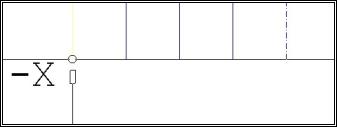
Use this menu option when you only want to add plug symbols and socket symbols to existing connection line(s).
Procedure
Activate the menu option Schematic / Plug /Plug (or Socket). The symbol set in the Parameters is located at the cursor. If you want to rotate it, confirm with the right mouse button and select the context menu option Flip X (horizontal) or Y (vertical). Place the symbol at the end of the line.
Place it with a click of the left mouse button or Return and the Item assignment will start in which you can select an item number and confirm the selection with OK. (Abort the Item Selector with ESC and you will switch into the Online Plug Manager automatically). However, if you place the symbol with the space bar or double click then the Online Plug Manager opens immediately.
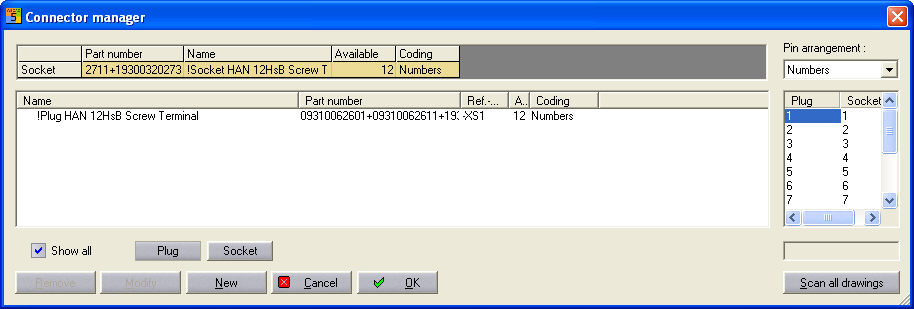
The elements listed here are available for you to assign. Select the plug (in this example). The associated socket appears in the dialogue at the top and the current allocation on the right. Now select the current pin which should be used on the right. If sockets or plug symbols are already located on the left of the current symbol then this reference name is used automatically.
