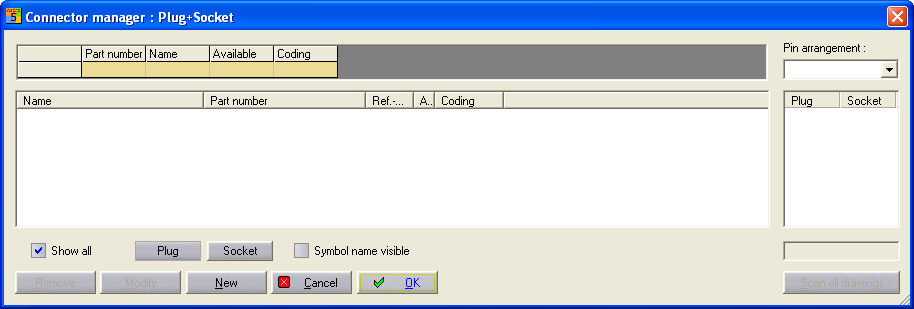
The Online Plug Manager is activated via Parameters / General / Plug/Socket option: Online Plug Manager. The menu option Schematic/ Plug opens a context menu in which you can decide whether you want to insert the symbols separately (plug, socket) or in a process.
Use this menu option when you want to insert plug symbols and socket symbols in one or more existing connection line(s) simultaneously.
Procedure
Activate the menu option Connect+Load / Plug /Plug+Socket. Place the start point of the plug line next to the connection line into which the Plug + Socket is to be inserted. Click on the other end of the connection line and the Plug Manager dialog will open.
Click on the New button and the Reference name input will open.
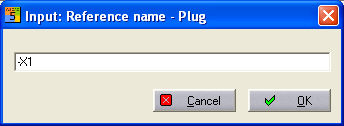
Click on the OK button and the Item Manager will open (the selection is determined by the selection text in the std-st module).
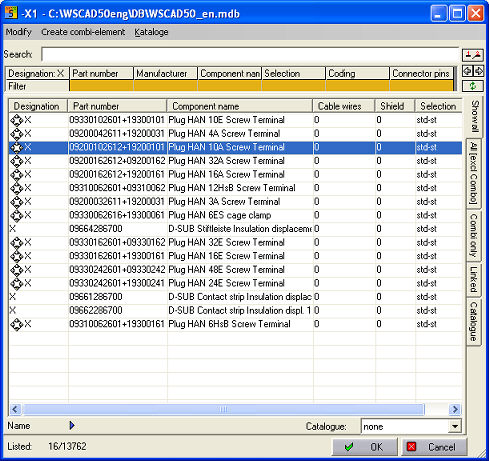
Select an item by clicking on it and the OK button and the information is saved in the Plug Manger.
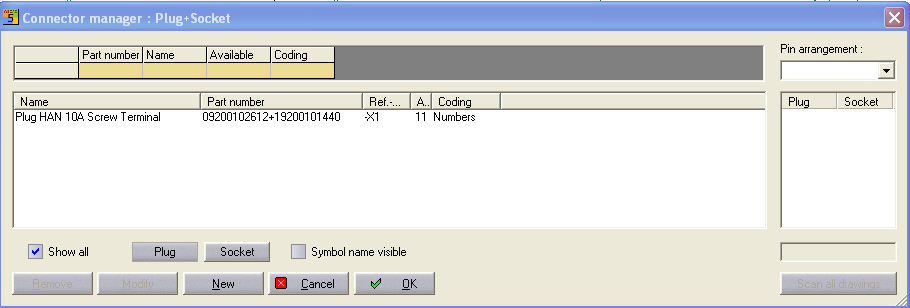
If you want to select an item for the socket immediately then you must confirm the following dialog.
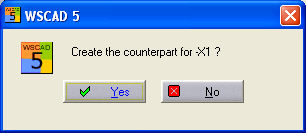
Click on the Yes button and the Item Manager will open (the selection is determined by the selection text in the std-bu module).
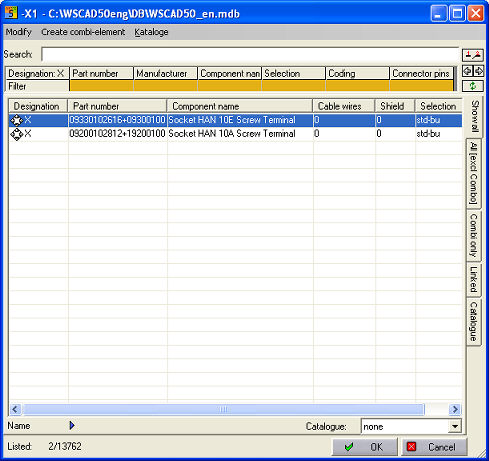
Select an item by clicking on it and the OK button and the information is saved in the Plug Manger.
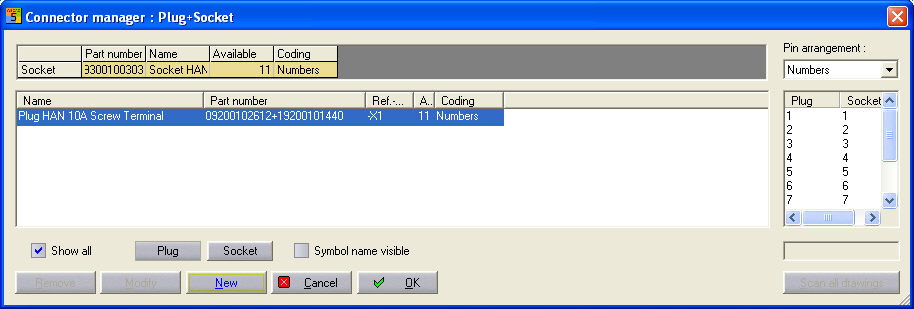
The plug belonging to the selected socket is shown to you in the top of the dialog in the Plug line (here, the identical reference name is crucial). See the selected coding in the dialog on the right (in this case, the number code). The coding is stored in the PLUG.TXT file. This is located in the database directory. This file contains the plug coding and can be edited. Now select the appropriate connection assignment by double clicking on the relevant numbers or colours (the current selection is shown to you below).
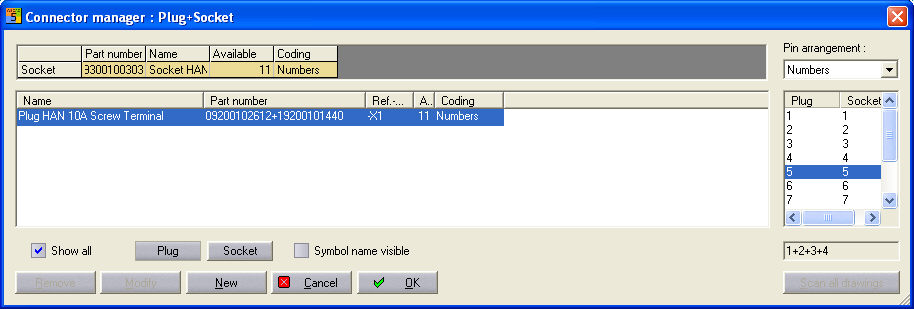
Now end the Plug Manager dialog with OK and the symbols in the circuit diagram will be supplemented and numbered after you have placed the reference name.

Caution
The direction in which the line is drawn determines the direction of the numbering. The order of the symbols is reversed with the shift key.
Examples
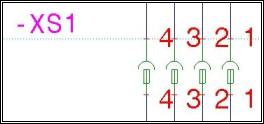
Drawing direction of the plug line: from right to left + shift key
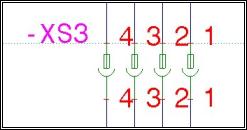
Drawing direction of the plug line: from right to left + shift key
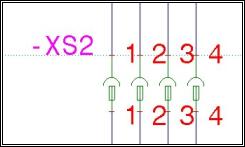
Drawing direction of the plug line: from left to right
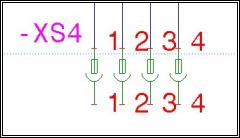
Drawing direction of the plug line: from left to right + shift key