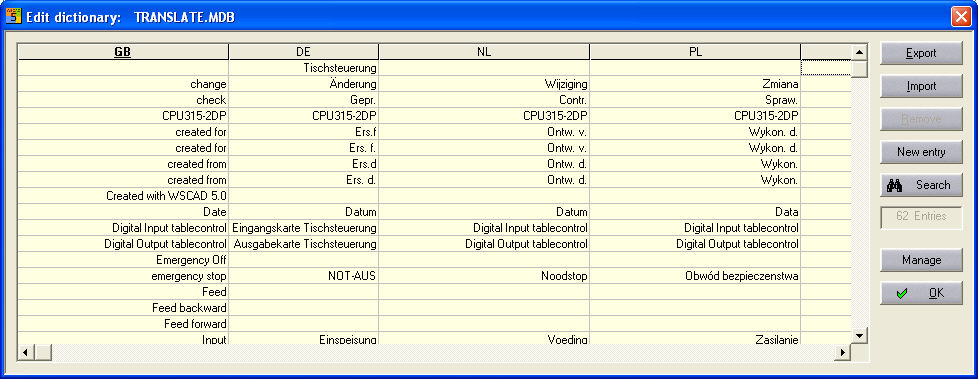
After invoking the lexicon via the menu option Modify / Foreign language / Edit lexicon, you will see the name of the current lexicon file (= database) in the dialog heading as it is set in the configuration under Settings / Common Settings / Database (here e.g. the database Translate.mdb).
The language identification appears as a column heading and the main language is underlined.
Hint
The dialog size and column widths can be changed by dragging them with the mouse. These are saved when the dialog is ended.
Another entry can be created at the end of the lexicon by using the New entry button.
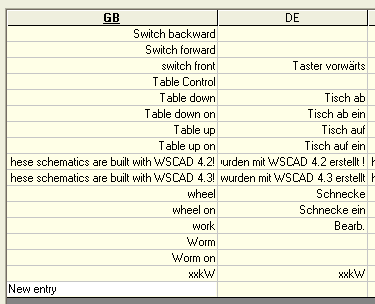
The entry is confirmed with <Return> and can be aborted with <Esc>. You can switch to the desired language field with the arrow keys or <Tab> and start inputting the translation directly.

The entry recognises whether an appropriate host language entry is already present.
The input mode of the field concerned is activated by double-clicking on a cell while maintaining the existing text, which is recognised by the different background colour.
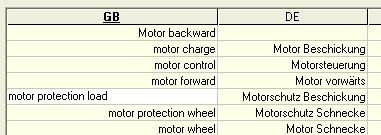
However, if you mark a cell without double clicking on it and start entering text directly via the keyboard, then any existing text is deleted.
Hint
The entry is aborted with <Esc> and you can switch between fields with the cursor keys.
Of course, you can also use <Ctrl-C> and <Ctrl-V> to copy texts. This also applies to texts, which have been saved to the Windows clipboard from an external program (translation program) etc.
The Search button offers this function also and opens an entry field in which you can enter the search term. The display is updated immediately with each character entered. The search is carried out in the main language.

In order to delete an entry, select the cell or line concerned and delete using the Remove button, the <Delete> key or <Ctrl-X>. If the host language is affected as well, after prompting, the entire entry is deleted, otherwise just the field concerned.
After invoking the lexicon via the menu option Modify / Foreign language / Edit lexicon, you can use the Export button to create an ACCESS database or a text file into which the texts are to be exported.
As a text file: there is a text line for each entry and each language is separated by a #. The languages which have been output are located in the first line of text.
As an ACCESS file: a database is generated with the lexicon table. A column is available for each language and a field for each entry. This database is created in the respective project path according to choice.
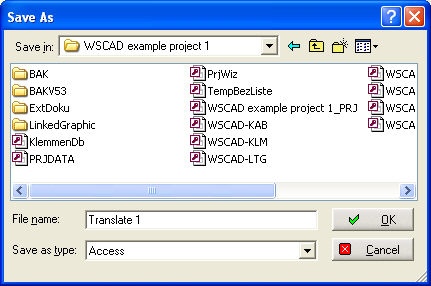
Click on the Save button and then the dialog (Language selection) will start.
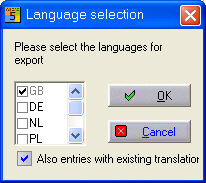
With Options, you can specify which languages are to be exported and whether all texts should be exported or only those texts with no translation. The output is in the form of an ACCESS file in the default format (ACCESS 97 or ACCESS 2000) or a text file. In the setting for ACCESS 97/2000, you will find in the configuration under Settings / Common Settings / Database. After confirming with the OK button, the export is started.
Texts and translations can be transferred from an external file to the lexicon. There are two possible methods:
From a text file: the structure corresponds to the file generated during the export. The first line indicates which languages (e.g. DE, NL,...) are present and all the other lines are text entries.
From an ACCESS database: the database must have a lexicon table. The column headings determine the languages and they determine how the text is allocated in the lexicon. If the entry concerned is missing in the host language, a new entry is produced in the lexicon.