Dimension
Dimension lines with 4 different line
ends are available for providing the dimensioning.
Display dimensions. Under menu option
View / Show dimensions, you can hide and reveal dimensioning.
Procedure
 After defining
the start and end point, the entry line for the text is
pre-assigned with the length of the dimension line. This value is calculated
from the units chosen (mm or inch) as well as the current cursor scale.
The text is automatically positioned correctly in the line or, with
a line which is too short, on the line.
The line can be prevented from being disconnected
in the configuration.
After defining
the start and end point, the entry line for the text is
pre-assigned with the length of the dimension line. This value is calculated
from the units chosen (mm or inch) as well as the current cursor scale.
The text is automatically positioned correctly in the line or, with
a line which is too short, on the line.
The line can be prevented from being disconnected
in the configuration.
Hint
The dimension line can
be disconnected automatically and provided with the unit.
The text size entered can be from
approximately 1.5 mm to approx. 10 mm. Text can only be written horizontally or vertically. The dimension line, consisting
of the line and the text, is stored internally as a symbol without a symbol
name. The colour therefore depends on the value specified for symbol
bodies.
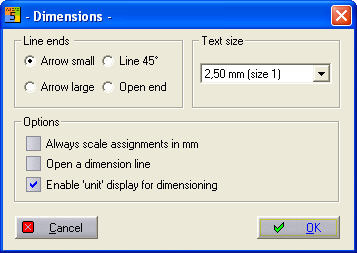
Measurement data in
mm
When the option is activated, the measurement
data are always output in mm (instead of cm or m), whatever the
value.
Disconnect dimension
line (otherwise set to line)
This option is used to determine whether
the dimensioning text is placed over the dimension line.
When the option is active, the ratio of the line length to the text
length determines whether the line is disconnected.
Display units with
the measurement data
This is used to determine whether the
unit is attached to the dimensioning text or not.
Hint
The specified cursor
scale is only important for showing the cursor coordinates and pre-assignment
of the measurement text. The output of the drawing on printers or plotters
is not dependent on this scale.