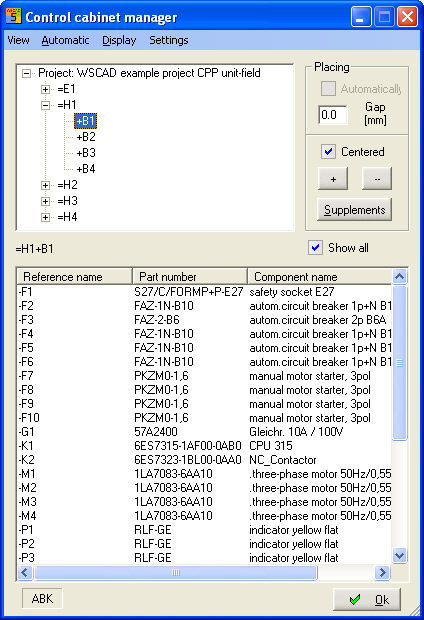
In the professional version, the control cabinet manager (CCM) offers you support when making a detail drawing of the control cabinet. It gives you a clear overview of components used in the control cabinet. The control cabinet manager (CCM) can be changed in terms of size and remembers the position in which it was last placed. You activate the dialog of the control cabinet manager (CCM) with the menu command Automatic funct. / control cabinet manager (CCM). In its display field, you see a menu line with View, Automatic, Display and Settings.
Auxiliary lines can be easily generated and deleted via shortcuts. Ctrl+| generates vertical lines and Ctrl+- generates horizontal auxiliary lines where the cursor is currently placed. In order to remove the auxiliary line, you repeat the shortcut with the cursor in the same position.
Menu in the CCM
With the menu item View on the left side, you can determine the sorting for the displayed components in the control cabinet manager, depending on the UFD in the project. If the option in the foreground is activated, the dialog remains visible during installation of construction elements.
Under the menu item Automatic, you can enter charts (insert components in the CCM), establish the dimension (required space), set the display lock and start edition of the positioning of the components according to Steinhauer (AddOn).
The menu item Display offers you a quick selection of the handling modes.
With the menu item Settings, you determine the drawing parameters and the construction lines.
Components in the CCM
The component list below shows all the components in the chart with reference name, number, component name and part number. If there are several components with the same reference name (terminal strips), the number is simply added up. The component list then contains only one entry, but with the corresponding number.
The control box Show all offers the possibility to show or hide components that have already been placed and are blocked from display in the bottom component list.
The components displayed in the bottom component list depend on the selection in the top UFD list in case you have issued system or location codes.
Unit / Field
Select Unit / Field, you will then see the sorting in the bottom symbol list, first according to unit and then to field or otherwise.
Field / Unit
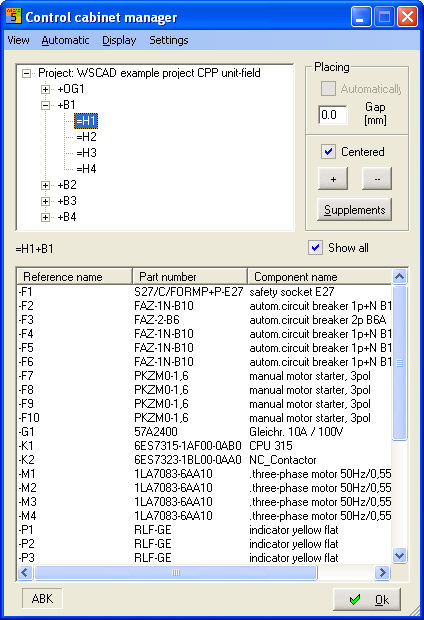
You can alternatively request sorting according to Field / Unit (without system or location codes, only the data of the project in the CCM will be shown in the top UFD list).
Foreground
If in the foreground is activated, the CCM remains visible while you place the symbols. Otherwise, it is transferred to the background and will return to the foreground only after the symbols have been placed.
Preview
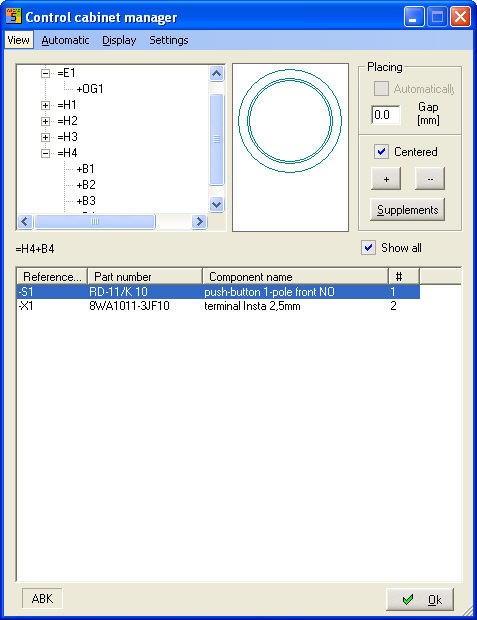
If you select a component which has a symbol association with a structure symbol in the parts database in the field cabinet, you will see in the Preview window a representation of the structure symbol.
Show all
The display can also be influenced by the control box Show all. If this is not activated, both blocked and previously placed symbols will not be shown.