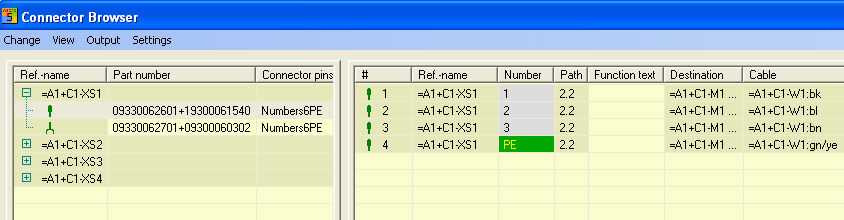
The connector browser draws list information from the connector manager, the databases of parts management and WSCAD codes. It can be called directly via the menu Automatic / Connector chart / Browser (compact and professional) or the connector manager, as well as with a click of the right mouse button on a connector symbol and the subsequently displayed parameter menu Browser.
View
For each reference, both connectors and existing sockets are always displayed with part number and color code on the left side in the browser. You can recognize this by the little plus sign with which you can resolve the representation. On the right side, you can see all the connector or socket contacts of the selected reference name.
Browser menus – Change, View, Output and Settings
Change: Here you can change the part or the color code for the selected connector or socket, but only identical symbols (only connectors, only sockets).
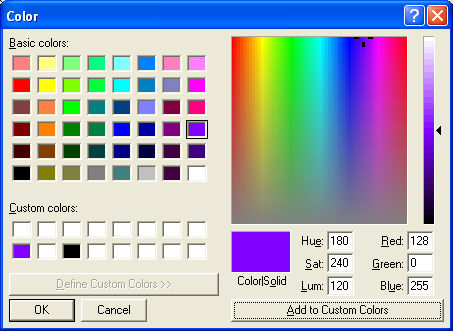
Part number starts parts database with the selected connectors or sockets. Here you can select a new part and then copy it with OK. Color code starts a selection dialog with the color codes. Here you can select a new code and copy it with OK.
View
shows you the part number and/or the color code with the application of
the bookmark system or location (the options are active only here).
Output: Here you effect the output of the connector chart of the selected connector (socket) directly to a printer or a WSCAD file via a WSCAD connector chart form.
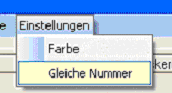
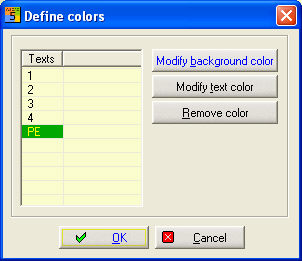
Settings: Here you can define the color settings in order to achieve optical distinction in the connector browser.
Other functions
Left side reference view:
The columns of the table can be displayed or hidden as well as moved at will.
Bookmarks (All
System Location) serve for a better overview in large CPP projects
with unit and field
codes (UFD).
The buttons  filter the browser display or connector
+ socket, only connector,
only socket.
filter the browser display or connector
+ socket, only connector,
only socket.
The fields part and color code can be edited directly (compact version) or via parts database or code table (professional version). For this you double-click the respective field. By clicking on the field part, you start, for example, parts management.
Make a multiple selection (Ctrl+one click on the entries or one click on the first and then Shift+last) and then click with the right mouse button in the selection. A context menu comes up (part number, color code). Depending on the selection, you can allocate a new part number or a new color code for all selected elements.
Right side view of individual conductor
The columns
of the table can be displayed or hidden as well as moved at will.
Bookmarks
(Sheet.Path and Alphabetically)
serve for better sorting.
Directly enter the function text for the respective number
here.
With the field Number, you can directly modify the respective assigned connector name (number). Double-click in the field and you will see a list of all the connector names deposited in this color code.
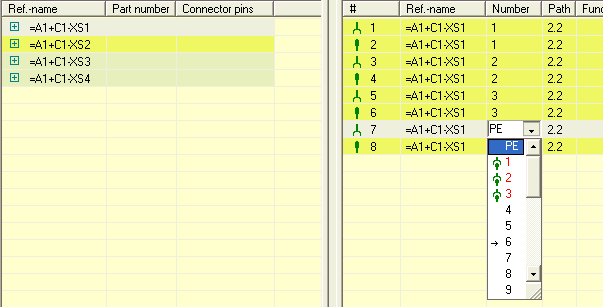
Here you can see that the currently assigned number is 6 (-> 6) and that the red connector names are occupied. If you select an occupied connector name, they will be exchanged. If you select a free number, this number will be used instead.
The function Show is active only if a connection has been selected. If you click on Show after the selection, the terminal browser closes and jumps to this number in the circuit chart.
Serial numbering
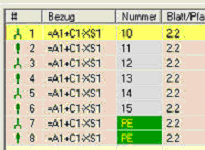
The field Number on the right side of the browser can be numbered automatically if online connector management is switched off. This enables a number-related representation in the circuit chart without using the color code of the database. This is also possible in the compact version.
Click on the first number and then, while pressing the Ctrl key, on the last number that is to be numbered. All the other numbers in between will now be marked. If you now activate the box serial numbering, the numbers are always counted by 1 up (connector+socket).
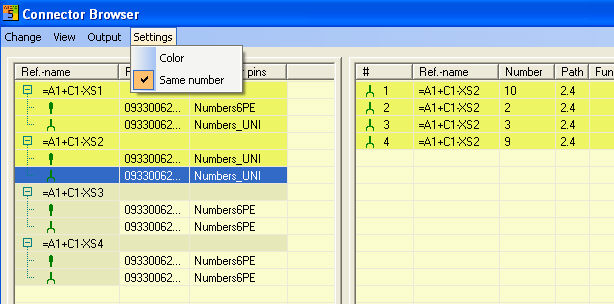
If you have not activated the option Same number in the menu, connector and socket will be serially numbered unless you use the box Number in pairs.