Cable chart
 The cable
chart is a chart containing all the individual cable conductors
together with additional information about the connected
components. The condition for this is that symbols of the type
cable conductor are used for cable representation, as the cable line does
not contain any information about conductor numbering.
The cable
chart is a chart containing all the individual cable conductors
together with additional information about the connected
components. The condition for this is that symbols of the type
cable conductor are used for cable representation, as the cable line does
not contain any information about conductor numbering.
The cable chart contains multiple information about the
individual conductors and the connected components. The graphic form allows
for flexible design of the cable chart.
For each cable, a new sheet is generated.
Begin by determining the sorting and
the output
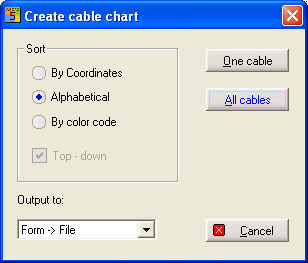
Sorting
According
by coordinates: Generates the cable chart depending on the positioning
of the cable conductors (either from left to right or, see illustration,
from top to bottom);
Alphabetically:
Sorts the colors or numbers of the cable conductors in a descending lexical
order;
According
by color code: Generates the cable chart depending on the indicated
color codes of the individual cable conductors.
Output to:
Selection of the cables
1 cable
Here you can generate a cable chart for a selected
cable according to a predefined form. You can alternatively carry
out generation of the cable chart directly from the project manager. After
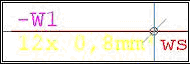
activating the command, you have to select
the cable for which the chart is to be generated. In order to do
this, click on the crossing point
of a cable line and a connection line.
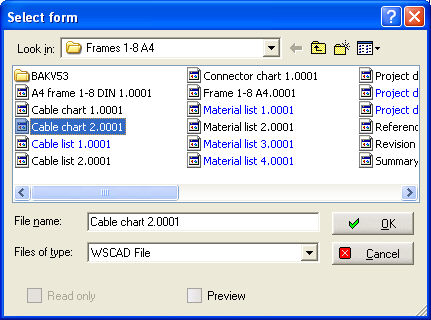
After selection, the form
dialog opens to define the form.
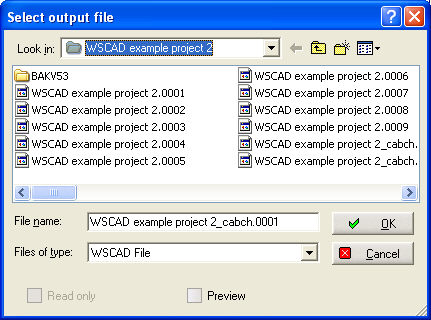
Then the name
of output file is to define,
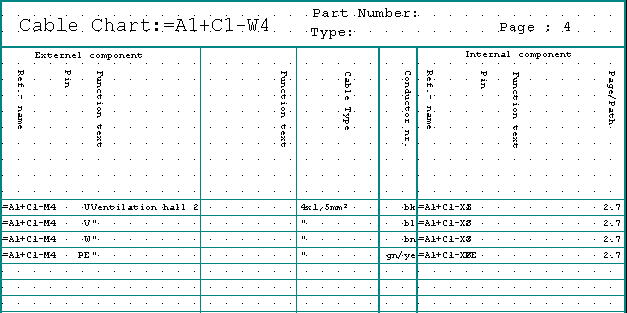
Example of a chart:
All cables
A cable
chart is generated for all the
cables of the project. You determine only the output
and then select the appropriate graphic form
from the dialog. The form will then be exported to the printer or file
or represented on the screen.