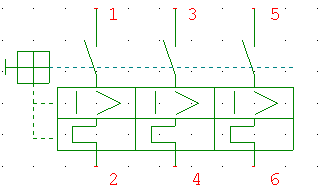
When Scale setting' is selected, you are prompted to 'Input the scale (0.5 to 2.0) :' . All co-ordinates will be multiplied by the scale entered. Pay attention when using 'Scale setting' so that the pins stay on the grid! If a component is magnified several times, it could produce errors if the pins no longer fall on grid points.
When the Rectangle setting is selected, a rectangle appears that encompasses the component graphics and the pins. Stretching the rectangle to a new size will modify the component size (and shape) accordingly. This method of changing size is best suited to rectangular shaped components with pins on the edges, e.g. a microprocessor. Using the command for typical electro-mechanical components can distort the shape completely, if care is not taken in its use. The Rectangle setting functions only with components whose pin direction was automatically determined: