you can compare the left
and the right directory with regard to name
and date.
you can compare the left
and the right directory with regard to name
and date.
Make sure to observe the information concerning the conditions of use for symbols with update protection
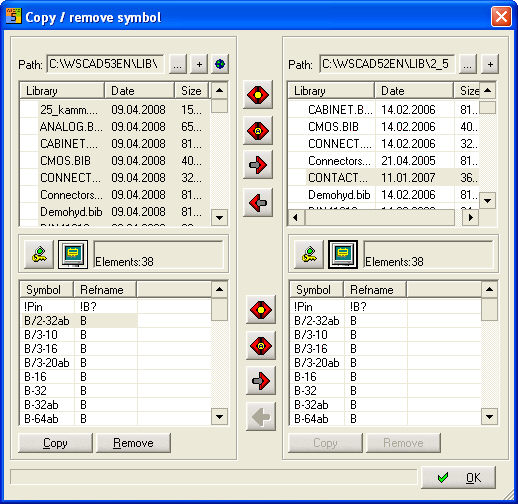
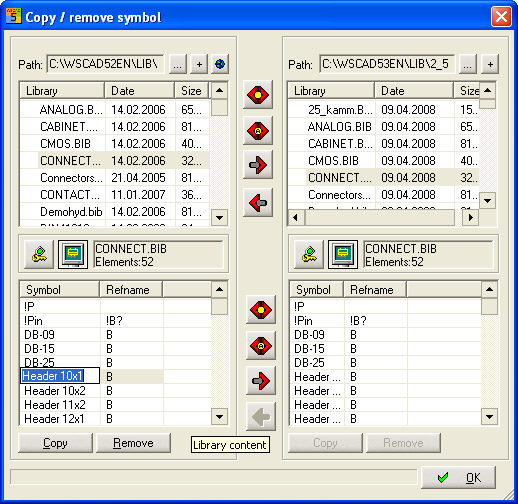
This command starts a dialog which is intended to simplify the organisation of symbols in libraries. The symbols of the current library can be copied directly to another library. Here you can display the content of two libraries at the same time in order to be able to compare the contents immediately.
Adaptation of libraries in different directories
Set, for example, the WSCAD52 libraries with 2_5mm on the left and, for comparison, the new WSCAD53 libraries with DIN40719 on the right. This serves for comparison of the contents of the two directories.
With the symbol you can compare the left
and the right directory with regard to name
and date.
With the symbol  you can compare the left
and the right directory only with regard to name.
you can compare the left
and the right directory only with regard to name.
Libraries that are missing or different on the other side are shown in a contrasting color.
With the graphic
boxes  , you can display a library
from the set library directory with its contents.
, you can display a library
from the set library directory with its contents.
With  , you can create a new (empty) library with a name of your
choice.
, you can create a new (empty) library with a name of your
choice.
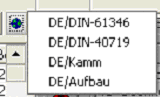
With the symbol of
the globe, you establish an internet connection with the WSCAD internet
server, where the libraries are loaded from. Select the DIN or the purpose
of the displayed symbols and libraries.
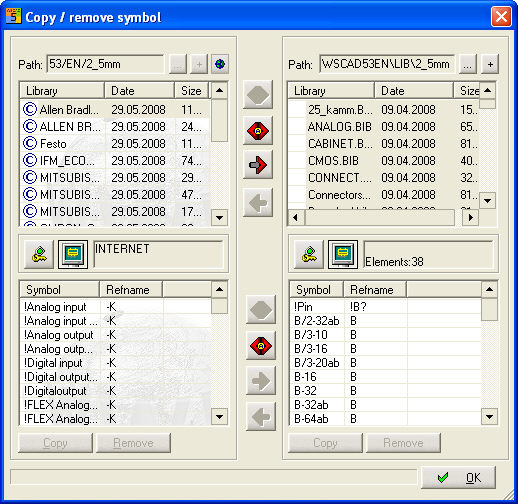
In copying processes in internet operations, you will see progress information which shows you the current stage.
In order to copy, for example, a library from the left side to the right
side of the dialog, you use the symbols  or
or  . With the familiar key
combinations [Ctrl + left click] or [Shift + left click], you can
select also several libraries. If there are already identical
libraries on the other side, you will be asked to overwrite them.
. With the familiar key
combinations [Ctrl + left click] or [Shift + left click], you can
select also several libraries. If there are already identical
libraries on the other side, you will be asked to overwrite them.
Adaptation of library contents
If you have selected a library on both sides, the symbols contained in them will be listed below.
With the  icon, you start symbol preview,
which attaches itself to the left or right of the dialog.
icon, you start symbol preview,
which attaches itself to the left or right of the dialog.
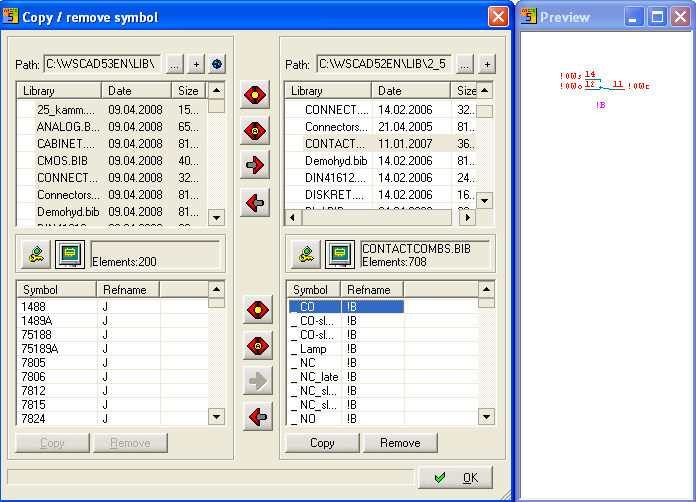
If you want to copy, for example, a specific symbol from the left side to the right side of the dialog, you simply drag the symbol by pressing the left mouse button to the right side and then let the mouse button go. With the familiar key combinations [Ctrl + left click] or [SHIFT + left click], you can also select several symbols. If there are already identical symbol names on the right side, you will be asked to overwrite the symbol (or symbols).
You can proceed identically with the symbol
or  . The selected symbol is now also
in the library on the right or the left side. In this manner, you can
very quickly compose you own library.
. The selected symbol is now also
in the library on the right or the left side. In this manner, you can
very quickly compose you own library.
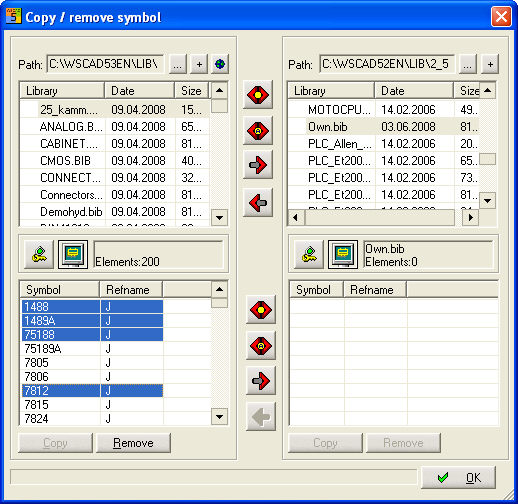
With the symbol  you can carry
out a comparison (name and date), as with the symbol
you can carry
out a comparison (name and date), as with the symbol  (only
name), between the left and the right library. Symbols that are present
in both libraries are excluded from the selection. Another possibility
to invert the selection is to activate Ctrl+I on the current list.
(only
name), between the left and the right library. Symbols that are present
in both libraries are excluded from the selection. Another possibility
to invert the selection is to activate Ctrl+I on the current list.
If you want to take over all the selected
symbols, you can copy them with the box  or
or  to the right (or left).
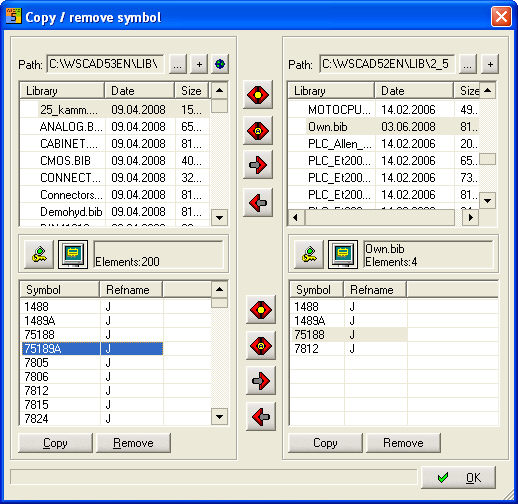
The boxes Copy or Delete generate a copy of the selected symbol or delete it respectively in the given library (with delete, multiple selection is possible).
Further functionalities
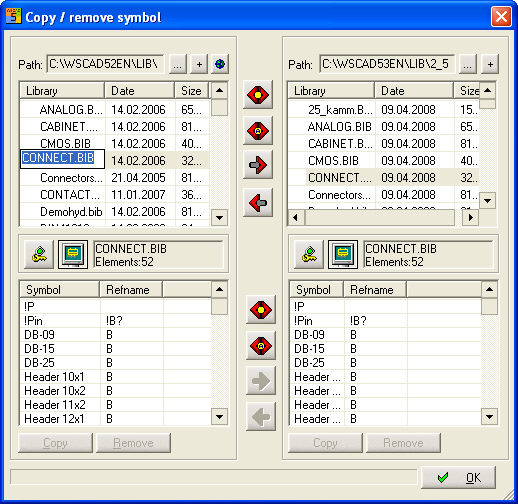
In order to change a library name within this dialog, you only have to double-click on the library name, then you will be able to change it (the same with F2).
Symbol names can also be modified.
Consequences of the copyright © for symbols and libraries
If you cannot copy symbols or libraries, this means the symbols from the internet or the download area are subject to the copyright © of the WSCAD maintenance contract. If the version from which you click on the symbols and libraries has no valid maintenance contract, you will not be able to copy the symbols or libraries to your existing directories or libraries.
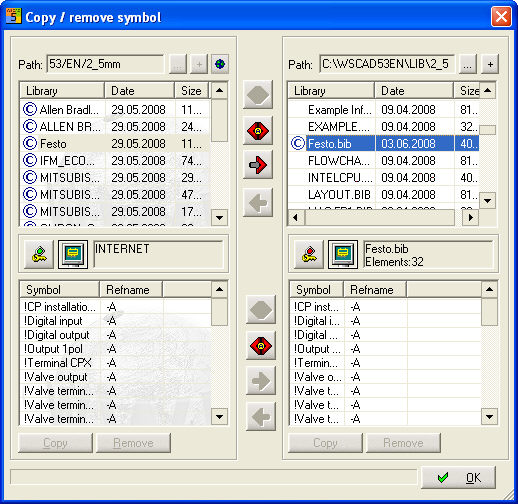
Symbols you create yourself cannot be saved in a protected library (copyright ©) without a valid maintenance contract. You will have been informed of this already at the moment of loading the libraries.
Symbols you create yourself can be saved in a protected library (copyright ©) if you have a valid maintenance contract.
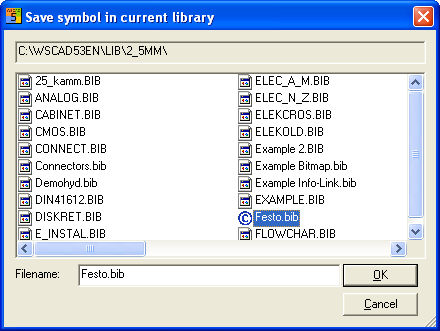
However, you should not do this, because these symbols will then automatically become subject to copyright. You receive a warning at this point.
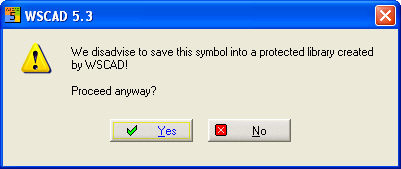
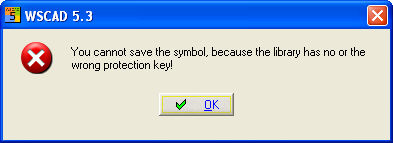
If you want to modify and re-save symbols which you took from a library protected by copyright ©, you can only save them in a protected library. If you select an unprotected library, you receive the following information.