New data record Modify data record
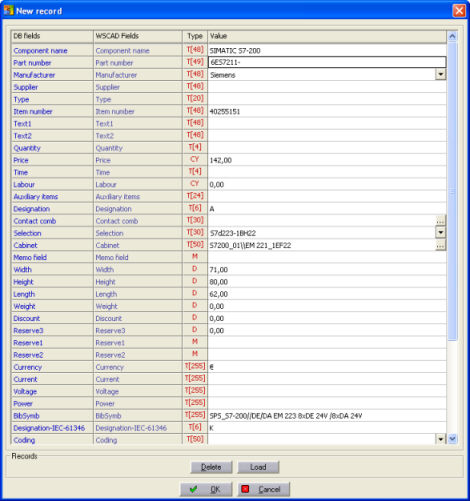
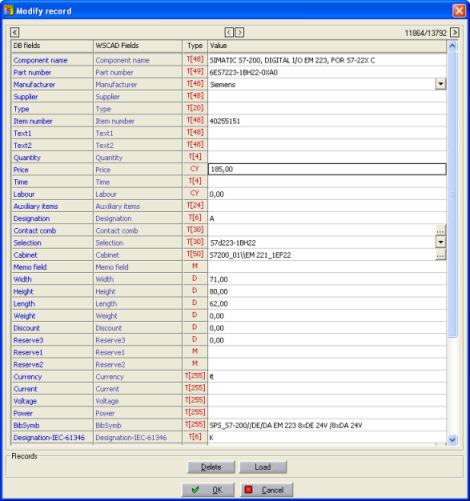
Under the menu option Edit / New entry or Change (corresponds to the function key F3 and F4) start a dialog which will enable you to create a new Part or change an existing one. You have the following options:
The Part numbers must be entered again. The function keys in the Part Manager are re-assigned.
|
New data record Modify data record |
|
|
DB fields is written in the left column of the dialog concerned. These are the field names of the database which you are using.
The WSCAD fields are in the middle column of the dialog. On the right, you will see the entry fields in the column Value which you can fill in with the Part values. The column Type shows you the selected field type (ACCESS) and the maximum number of characters the field concerned can accept.
Database fields with special functions
Special feature If you require round symbols for the switch cabinet layout, then enter the width or possibly the depth or length. Simply click on the fields for the entry and then edit them by using the keyboard. The entries are accepted by pressing Return and the cursor moves to the next line.

Additional database control elements
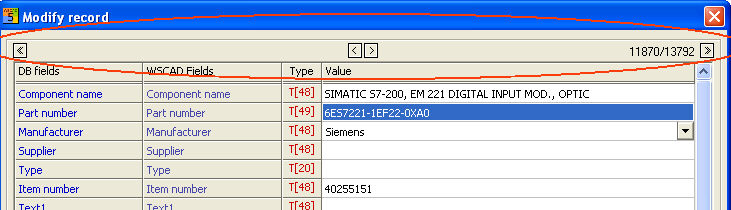
In the Change data record mode (F4), you will see a few buttons under the dialog title line which you can use to navigate through the data records. You can switch to the data records which were previously displayed in the Part Manager. The single arrow jumps one data record forwards or backwards. The double arrow jumps to the beginning or end of the data records.