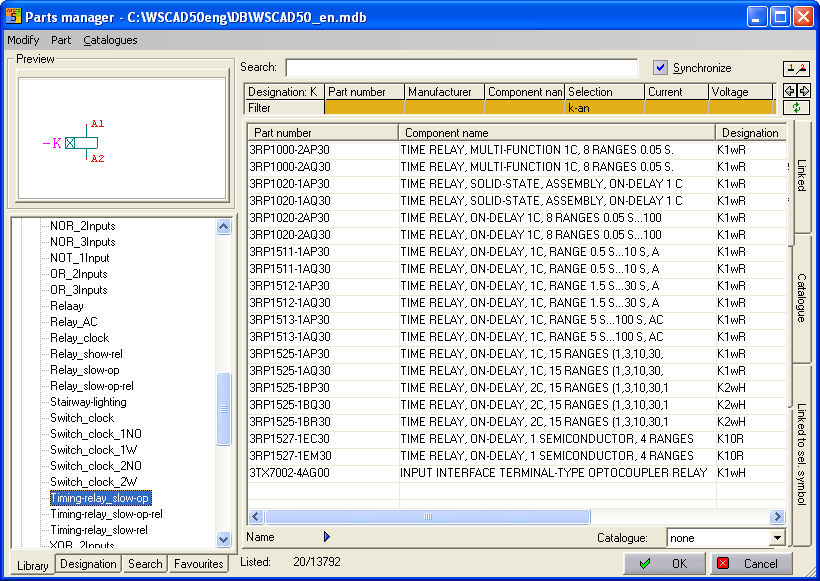
The Part Manager is accessed via the menu option Extras/ Part Manager. The Part Manager interface has been adapted to conform to the style of Windows Explorer. Part data and symbols can be seen at a glance.
Reference and selection
The identification letters and selection texts which are assigned to the symbol are immediately visible. The data records shown in each case are minimised by selecting the tabs. The Filter area provides numerous different ways to reduce the displayed Parts to the necessary dimensions. Both the way the Filter operates and the data fields which are displayed can be adjusted individually. The filter entries are saved in Wswin50AT.ini in the CFG directory and can be changed directly in the dialog.
Columns
The columns of the Part database which are shown on the screen can be hidden or revealed by using the right mouse button. The sequence of columns shown are controlled by clicking on the column headings. The latest column heading to be clicked on moves to the first position and the search function is executed in the first column.