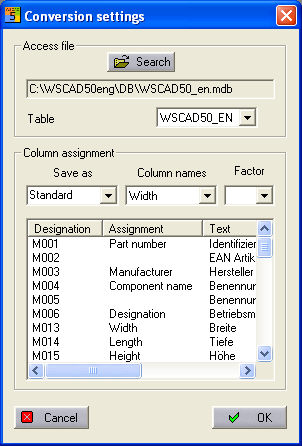
Which information has to be transferred from the ECAD file to which fields of the ACCESS database must be specified first. Furthermore, if you do not wish to read into the current material database, you must also specify the (existing) ACCESS output file. Click on the button Parameters and the following dialog will appear:
Destination database
The database in which the import is to take place is entered in the group Access file. By clicking on the Search button, the standard Windows dialog will appear for selecting the files. If the database has several tables, you must select one. These specifications must be met before the assignments can take place.
Assignments
Use Assignment to specify which variables from the ECAD file must be transferred to which ACCESS file. In the list below, the characteristic code of the ECAD standard will appear in the ‘Identification’ column, the associated database field will appear in the ‘Assignment’ column and the description text of the ECAD standard will appear in the ‘Text’ column.
To carry out or change an assignment, select the relevant field (or empty field) in the selection box ‘Field names’ and assign this to the characteristic code in the first column of this data source by double clicking on it with the mouse.
In this way, you will establish the links from the ECAD file to the ACCESS file.
To save this compilation so that it can be easily invoked later on, simply enter a name and then click on the <OK> button.
Sometimes it is necessary to include a factor during the data import. Thus, in the WSCAD database, the measurement data are generally expressed in [mm] but in the ECAD standard they are usually in [m]. To this end, after selecting the database field, the factor must be set before initiating the assignment process by double clicking with the mouse.
Comb data
The current adjustment of the comb library is important when transferring contactors or relays. During the import, a WSCAD comb name is determined from the contact information present in the ECAD file as it is entered in the Comb file in the database. This then starts a search in the current comb library for the appropriate comb. When an appropriate comb has been found, then the name is also entered in the database and in the assigned field:
If the comb for the item cannot be found in the library, the comb identification is transferred to an error log. This can be displayed at the end of the run or will remain in the file ECADBTN.ERR which is an ASCII text file. There, by giving the item name, it is possible to check and see which combs are missing in order to create them afterwards in the symbol editor. Only then can you work with these items perfectly in regard to contactor management etc.
Note
The characteristic codes KW_0 - KW_3 are not ECAD standard codes. They are special WSCAD codes for determining information from the ECAD standard.