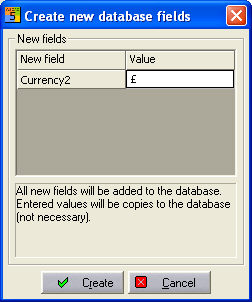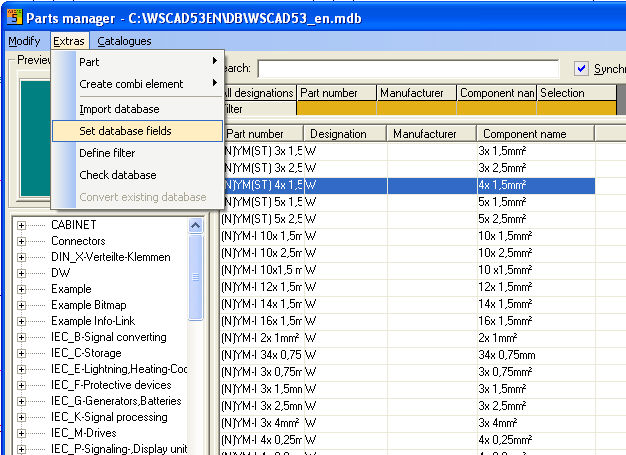
All the current links of the used database, here C:\WSCAD5x\DB\WSCAD5x.mdb, with possible WSCAD fields are displayed under the menu item Extras / Parts manager and Extras / Set database fields.
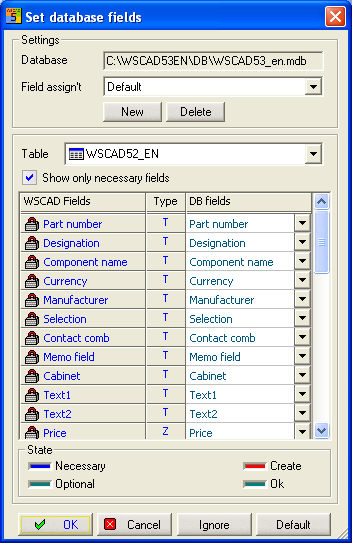
Field assignment
Settings for field assignment are saved in a separate table of the database (here in the example under field assignment Default). With the New box, you generate a new field assignment and designations and under a new name. With the Delete box, you can cancel these field assignment designations.
Selecting a table
Databases in ACCESS format can contain many different tables. Here you can set the table (here WSCAD5x_EN) of your database used above and define a different field assignment for it.
Only show necessary fields
The option Show only necessary fields hides fields which can be managed by WSCAD in addition to necessary fields. The blue fields on the left side are WSCAD data fields, for which a field must be assigned. If your database does not have a corresponding field, the space will be left empty on the right side.
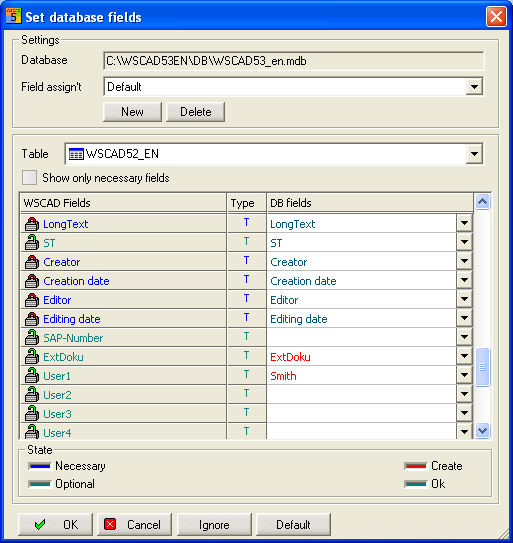
Green fields are not necessary but can also be assigned.
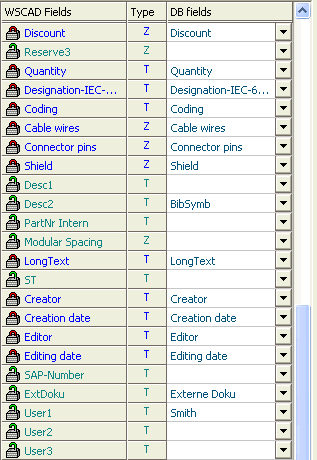
With the pull-down menu of the DB fields, you can define your own field name with belonging value or select one of WSCAD. With the Ignore box, you can cancel selections. Ignore leaves the state of the table unchanged and results, every time you open the dialog parts management, in a new field assignment process. Default tries to find the best fields in your database according to internal criteria. Identical fields are copied automatically.