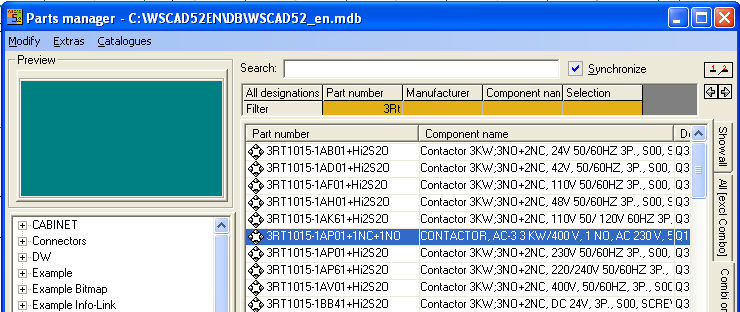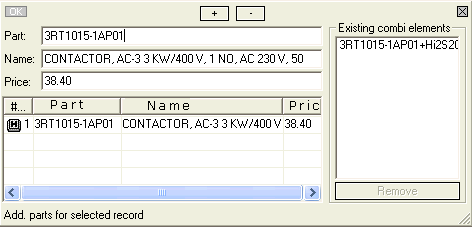
The combination element is an element which is made up of several individual parts (base element + additional components).
With the aid of so-called combination elements (e.g. contactor relay + auxiliary switch block) it is possible to work with symbols for which only one symbol is present on the circuit diagram but which is made up of several elements in the material list. Examples of this are a lamp (base element) for which only one holder and cover is required or a contactor which is furnished with contact tops. Select a data record (base element) for which you wish to create a combination element.
Under menu item Tools / Create combination element / Any (shortcut <Ctrl> +B) the dialog starts which already has the selected item numbers in the item line. You will see the existing combination elements for this main element under User names. If you select an entry, the Delete button becomes active. The Delete button removes the existing combination element (caution).
The entry Part must be changed since the Part number must be unambiguous. The main number, however, remains fully intact. Apart from that, the name of the combination element should be extended in a similar way. Then double click on all items in the Part Manager which are associated with this component. The dialog can be moved anywhere and still remain active.
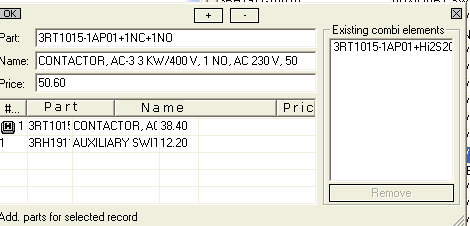
The number of selected items in each case can be changed using the ‘+’ and ‘-’ keys. The entries can be removed by selecting the element and pressing the <Del> key on your keyboard. Click on the OK symbol on the left in the dialog. The Part is generated and when the Combination tab is activated (right on the Part Manager dialog) all combination elements appear. Combination elements are marked specifically.