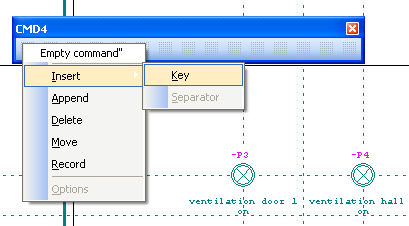
In order to configure the buttons in a toolbar according to your preferences, you can activate the Object characteristics menu by positioning the cursor on the button and clicking the right mouse button.
You can insert an additional button or a separator at the insertion point (the point in front of the cursor position). If this point is already a separator, a further separator cannot be inserted. If a new button is inserted, it is initially empty, i.e. no function has been assigned to it. If the maximum number of buttons has been reached, an error message appears and the function is not carried out.
A new button can also be attached to the end of a toolbar. As with an inserted button, it is initially unoccupied and you must first of all assign a function to it before you can work with it.
The button on which the cursor is positioned can be moved to another position on the same Toolbar. You start the procedure by selecting the menu item ‘Move’ in the Object characteristics menu. Now move the cursor to the position where you want to insert the button and activate the Object characteristics menu again using the right mouse button.
When this item is selected, the button or separator on which the cursor is located, will be deleted from the toolbar without any further security prompts.
You can see which function is assigned to a button, by looking at the first line of the Object properties menu. In order to modify or reassign a function, select the menu item ‘Record’. This item always requires the user to take the appropriate action, which is then recorded. A tick within the menu will show whether this mode is still active.
If you activate the recording, the program waits for you to select the desired menu item. If the command is assignable the button display momentarily changes. When the menu closes, the recording automatically terminates.
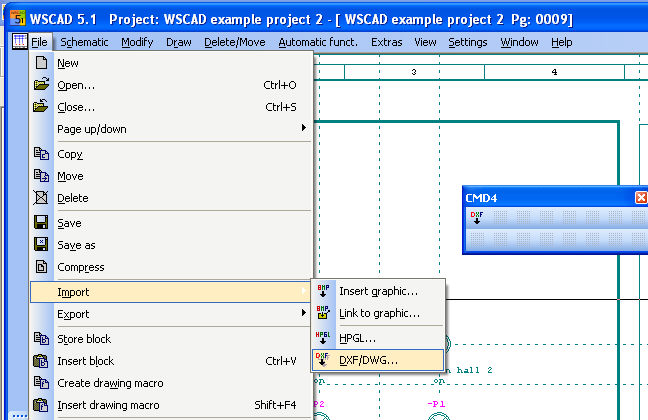
This item brings you directly to the appropriate section of the configuration, assuming that the command in question is configurable. If not, the menu item is shown as inactive (grey).