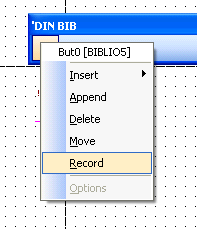
Library toolbar configuration differs from that of a command toolbar only in the assignment process:
The component which is to be assigned must first be loaded into the Symbol editor. Use the zoom function to enlarge the drawing so that you can easily identify the section to be allocated to the button. With the right mouse button, activate the Object characteristics of the desired button and choose the command Record.
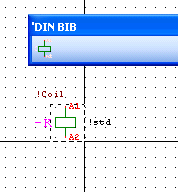
The program waits for you to open up a window with the mouse. This section is then sized to suit the button and displayed within it. The component name and the name of the active library are also transferred. When you activate the button , the component is immediately loaded onto the cursor. The background color of the Symbol editor is also displayed.
Tip
You can check the allocation of each button within a toolbar from the component list in the Desktop dialog.