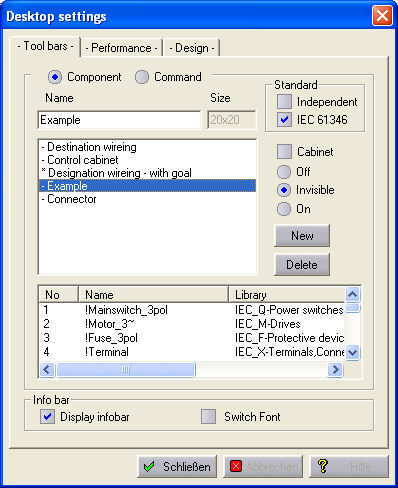
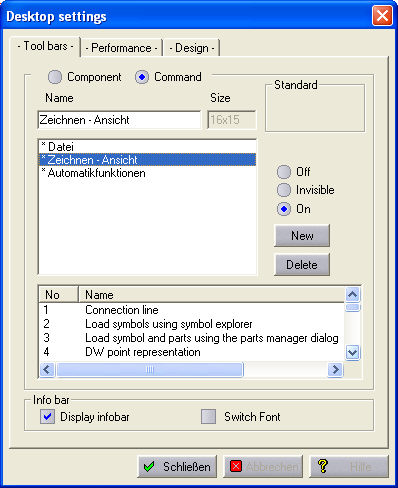
Function bars can be quickly and conveniently managed with the aid of the Working interface dialog. The dialog is invoked via the menu option Parameters / Desktop / Function bars.
Choose between the library bars and command bars in the upper area. The available function bars for the category concerned then appear in the list underneath. Active function bars are marked with an ‘*’ and invisible ones are marked with a ‘.’ If you select one of the bars, you will see the size of a button on the immediate right and underneath, the functions assigned to each button. The Library column, however, only appear in the case of library bars.
The command or library bar options
Note
You can change the size of each column (e.g. Name or File) in the list field by dragging the heading field with the mouse.
The function bars can be switched between the states On and Hidden very quickly by clicking on the open area at the top next to a command bar, for example. A list of all the function bars loaded is displayed and the state is switched simply by clicking with the left mouse button. A new function bar is created by clicking on the button NEW and a new dialog starts which can be used to adjust the name of the function bar concerned, the number of buttons and the size of the library bars. You can give the function bar any name you like and specify the number of buttons on the bar. The size of the command bars is fixed. With library bars, you can either choose the standard size or specify the size of the buttons. The DELETE button permanently deletes a function bar after a prompt.