Toolbars general
 The arrangement or adjustment of the
desktop is one of the most important criteria for the fast and efficient
use of a program. In Windows the arrangement of the elements available
to the user and the degree of variability are especially important. Toolbars
play a major part here, and there are various types of toolbar.
Toolbars have common features, but offer various functions.
The arrangement or adjustment of the
desktop is one of the most important criteria for the fast and efficient
use of a program. In Windows the arrangement of the elements available
to the user and the degree of variability are especially important. Toolbars
play a major part here, and there are various types of toolbar.
Toolbars have common features, but offer various functions.
The toolbars can take two different forms:
an independent
window which can be placed anywhere on the desktop and which has its own
window text (“floating” toolbar).
a linked
toolbar, which can be ‘docked' to any side of the main window; it does not have any window
text (“docked”
toolbar).
You can switch between the
two forms using the following Windows-standard methods:
Double
click the edge of the toolbar with the left mouse button to change the
form of the toolbar.
Click on the edge of the toolbar,
and then drag with the left mouse button held down, to move and place
the toolbar as you wish. If you move the bar right to any side
of the main window, it becomes “docked” again.
Toolbars can be positioned
parallel (next to each other) or in rows (one behind the other) at the
edge of an application window.
As soon as the cursor moves
onto a button, a short help text appears explaining the button’s function.
The individual buttons are always arranged in rows in the toolbar.
If you move the mouse onto a button, a “Tool tip” is displayed, describing
the function of the button. If you press the button and hold it
down, you will see additional information in the status bar. In order
to avoid overcrowding the desktop, every toolbar can be made invisible.
Move the mouse onto the area of the toolbar (but not onto a button) and
click with the right mouse button to obtain a menu covering both the visible
and the invisible toolbars.
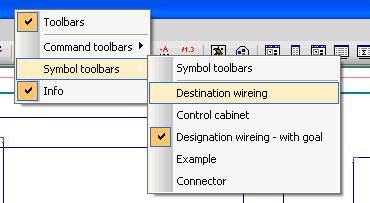
WSCAD has three different types of toolbars:
Command
toolbars
Library toolbars
Information
bar
WSCAD 5 can handle up to 200 toolbars and a maximum of 2000 buttons
in the library toolbars. The number of command and library toolbars together
is limited to 200. They can be held in the background (invisible)
or can be switched off. The maximum number of buttons per bar is
set in the configuration and can be modified. On all the library
toolbars together, there can be a maximum of 2000 buttons. There
is only one information bar.