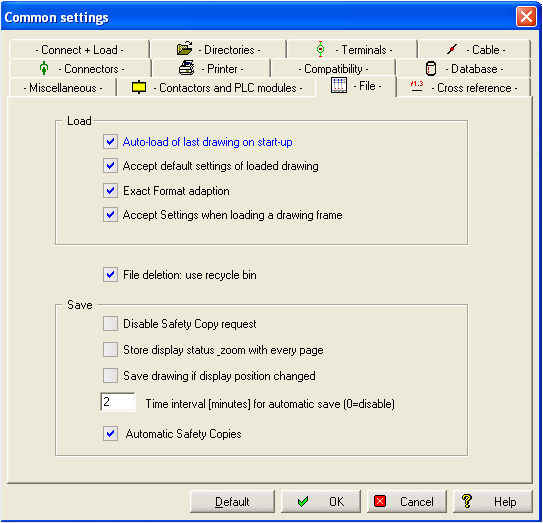
Within this tab are all the settings, which control the loading, and storing of drawings.
Auto-load of last drawing when starting program anew
If this option is selected, WSCAD 5 will automatically load the last active drawing when the program is started again. Otherwise WSCAD 5 will open with an empty screen.
Accept default settings of loaded drawing
When a drawing is saved the following settings are stored along with the drawing: Page size, display status, grid size, path assignment for cross-reference, position of the reflector contacts. If you activate this option, the above values, stored with the drawing, are used when the drawing is loaded.
Hint
If you wish to change the parameters of the drawing (e.g. path width), use the 'File save' command to write the changes to disk. Otherwise, the old values will always be selected.
Accept Settings when loading a drawing frame
If you are inserting a drawing frame into a schematic and this option is activated, then values form the path and distances will be take over.
Exact Format adaption
Setting this options ensures that the drawing sheets exactly fit the current format size (A4, A3…).
Accept Settings when loading a drawing frame
If you are inserting a drawing frame into a schematic and this option is activated, then values form the path and distances will be take over.
Disable request 'Safety copies'
Select this option if you do not want to work with safety copies.
Store display status+zoom with every page
If this option is selected, display viewing information (e.g. zoom value and pan position) will be stored. The next time the drawing is opened, it will be displayed at exactly the same position.
Remember that only modified drawings are automatically saved.
Store drawing if only display position modified
If this option is selected, the display status will be stored, even if the drawing itself has not been modified.
This is useful when paging through a drawing set (if the display status was also stored). The disadvantage is that the automatic function will always create the universal connection file (*.CXK).
Time interval for automatic saves
WSCAD 5 has the ability to regularly save onto disk the file you are currently working on. Set the value to 0 to disable the automatic save.
Automatic Safety Copies
If you are saving single schematics WSCAD creates a subfolder BAK in the project folder. In this folder, the files will be saved with their original name.
Deleting files to the recycle bin
This option prevents files from being deleted immediately without the possibility of recovery. If you tick on this option, the deleted files are stored in the Windows recycle bin and must be deleted again from there for them to be removed completely.