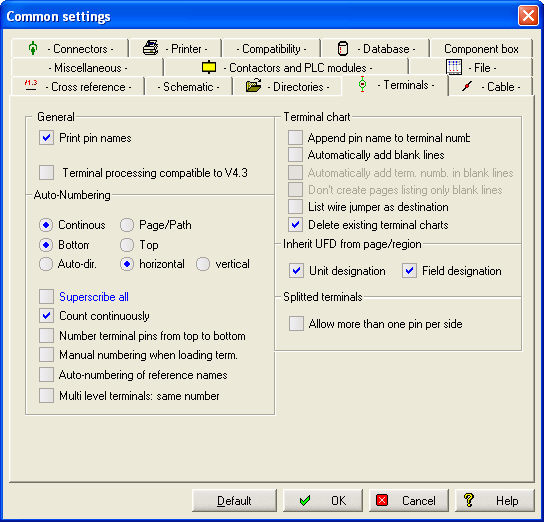
With the options of this tab, you can predefine settings for terminals. Most settings have no significance for the basic version and are therefore inactive.
General
Print pin names
The pin name (=internal side) is included in the output to the printer. For multi-level terminals, it is often expedient not to represent the pin name (=internal side) as a point, but to indicate it with, for example, a or b. This pin name can then be added to the pin number (=terminal connection) in the terminal chart, e.g. 1a, 1b, ...
Note
Only the first sign of the pin name is copied!
Terminal processing compatible to V4.3
Activate this option only if you require a processing mode as traditionally described under terminal chart.
Auto-Numbering
Continous or Page/Path
Depending on the setting, the terminals are, during numbering, provided with consecutive numbers or digits related to sheet / path.
Terminal numbering bottom or top
Here you can determine if the terminal number shall be positioned at the top or bottom connection (pin) of the terminal.
Note
If no connection is selected, the pin number is deleted in any case. This is important, for example, when you label manually (PE) and then number automatically.
Direction of the terminal number
In the setting auto, the pin direction of the terminal (as defined when the symbol was created) determines the alignment of the terminal number. If you select horizontal or vertical, the predefined pin direction is permanently modified. In case of automatic numbering, this process cannot be reversed.
Superscribe all
When this option is activated, all terminal connections are numbered. Otherwise, only those terminal connections are changed which begin with a digit.
Count continously
When this option is activated, those terminals that already have a terminal number will be included in the numbering (important: the first sign must not be a digit).
active 
not active
Number terminal pins from top to bottom
Terminal numbers are issued depending on the position in the drawing. When this option is not activated, the terminal number increments in each line from left to right.
not active 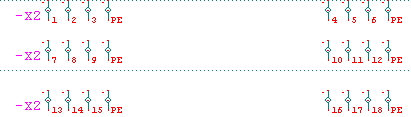
active 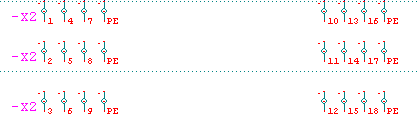
Note
The output order of the terminal chart in an unsorted output corresponds in this case to the set direction!
Manual numbering when loading term.
If you activate this option, you have the possibility to enter the terminal number directly when you are loading. Observe the display in the information bar, which gives you corresponding information.
Auto-numbering of reference names
When this option is activated, the reference names of the terminals are also processed during automatic numbering, but you receive a query for confirmation beforehand. However, the reference names of terminal strips are usually given manually.
Multi-level terminals: same number
With this function, you obtain an identical number for all connections of a multi-level terminal.
Terminal chart
Append pin name to terminal number
When you activate this option, the terminal numbers are extended by the pin names in the terminal chart output. This is ideal for multi-level terminals which have an identical terminal number.

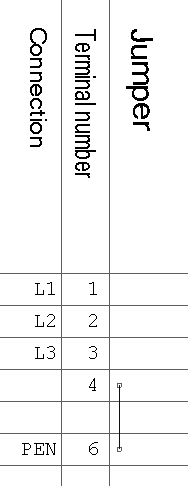
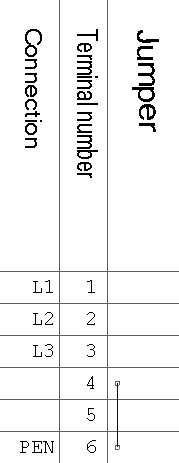
Automatically add blank lines and Automatically add term. numbers in blank lines
|
Automatically add blank lines
|
Automatically add numbers in empty lines |
|
|
|
Don't create pages listing only blank lines
Terminal charts that would consist only of empty lines will not be generated.
List wire jumper as destination
Wire jumpers are included in the evaluation as internal or external destinations.
Delete existing terminal charts
Previously existing terminal charts are not deleted. If no overwriting is required, you only have to issue a sheet number.
Inherit UFD from page/region
If you activate the option boxes, Unit/or Field edited in the terminal chart.
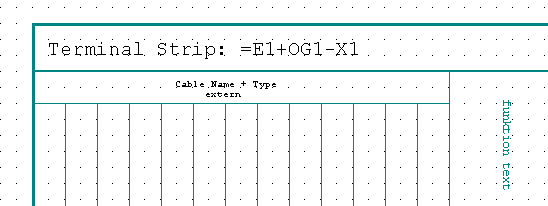
Split terminals
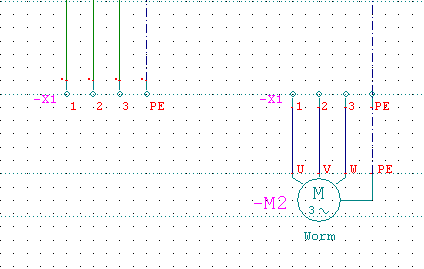
Allow more than one pin per side
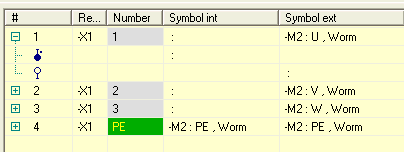
The option makes it possible to over-occupy a split terminal. In the example, you see a representation with the split terminals internal+jumper and external+jumper without this option. The question marks ? in the browser indicate an over-occupation.
|
Intern |
Extern |
Browser