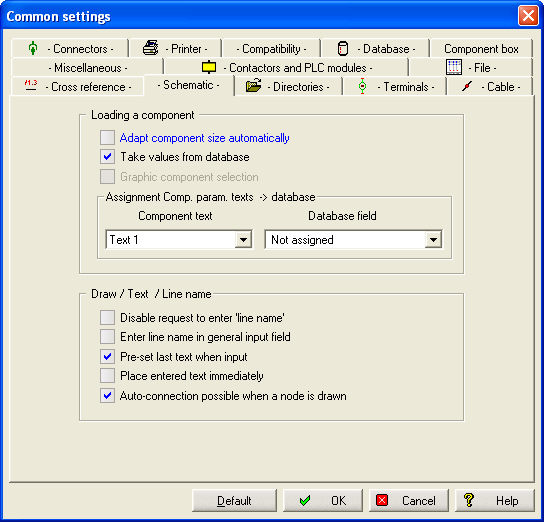
Within this group, are all the settings, which have an effect on procedures such as placing a component, drawing or entering text.
Adapt component size automatically
Standard library components are all created using a 2.5mm grid so that the pins fall on grid points. If you work with another grid, the component pins will not fit. Enabling this toggle will cause the component size to be adapted from a 2.5mm grid to suit the selected grid size.
IMPORTANT
Please use this setting with care. If you draw using a 2.5mm grid, there will be no problems. However, if you draw in a 1, 2 or 4mm grid and use 2.5mm library components, you must make sure that any components that you create, are created using a 2.5mm grid, otherwise the size adaptation will not work.
Take values from database
If this is activated, you can select Symbol parameters, e.g. part numbers, component names and Text2 from the database. Only components corresponding to the designated item will be displayed in the dialog, if it was stored in the database (only Mega module).
Graphic component selection
If this is activated, every time you use the command 'Schematics - Select component', WSCAD 5 displays the drawing corresponding to the current library, and you can simply pick the symbol you need by positioning the cursor over it and clicking the left mouse button.
Assignment Component Parameter Text to Database
Here you can create a connection between Component Text (Text3…Text16) and a specified Database field. When placing components the values from database will be assigned to the particular Component Text. (If option 'Take values from database' is activated)
Disable request to enter 'line name'
This prevents the call up of the 'Input line name:' dialog to enter the line name and additional information.
Enter line name in general input field
If this option is selected you must use the general input field at the information bar to enter line names.
Pre-set last text when input
If this option is selected, any text entered last will be displayed in the input field of the information bar (e.g. reference name, component name, variables,...). This is very useful when using similar text inputs.
Place entered text immediately
When placing components and entering the associated text for the component, deselecting this option means you can position the text in any desired location after it has been inputted. Selecting this option means that the text will automatically be placed at the location determined for that text when the component was created.
Auto-connection possible when a node is drawn
If this is activated, a connection line will automatically be drawn from the point where a node is placed to a connection pin on a component, if the node and pin are directly above or below each other (or directly left or right depending upon the setting for horizontal or vertical functionality). The automatic connection line is disabled if the general automatic connection (Function key <F10>) is disabled.