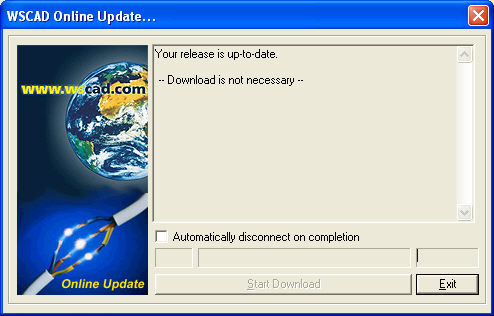
Once the online checking and download have started, a dialog appears which shows the current information on the available software package. The directory into which the download file is copied is permanently created internally.
The dialog is closed by clicking on the button Finish and then WSCAD 5 can be started in the normal way. The button Start download starts the process and a progress bar appears on the screen. The process can be aborted at any time by clicking on the button Cancel download. The option Automatically disconnect connection when finished closes the online connection after the software has been successfully downloaded and disconnects any remote data transfer connection via the modem or modem card.