 The
reference names
of all symbols can be printed on labels. For this purpose, you have to
provide certain data (e.g. width, height, distance, etc.) about the labels
you need.
The
reference names
of all symbols can be printed on labels. For this purpose, you have to
provide certain data (e.g. width, height, distance, etc.) about the labels
you need.
The
reference names
of all symbols can be printed on labels. For this purpose, you have to
provide certain data (e.g. width, height, distance, etc.) about the labels
you need.
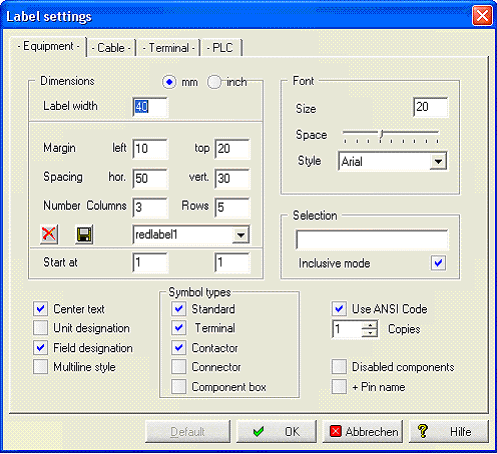
The text to be printed will be positioned on the sheet according to these guidelines. You can define for example Dimensions, Fonts Margins and make Selections.
You can save the composition with an appropriate name. In order to do this, you enter a name in the middle line and then click on the disk symbol. You can delete the file with the red X.
Start at means to begin printing at Column x and Row y .
Options on the left
The text can be positioned left aligned or centered. You can determine if Unit, and/or field designation should also be processed. If so, you can output the text in Multiline style, e.g. different lines will be created for Unit designation, field designation and reference name. The required line distance is calculated from the font size used.
Hint
For left aligned text there is a margin of 5% of the label width.
Tip
Even when you select 'Multiline style' and the Unit or field designation is included, the Unit/Field information is not printed on a separate line.
Symbol types allows you to limit the output to:
Standard, main / additional element
Terminals
Contactors (coil, protection switch)
Connectors
Component box
Selection
In addition, you can control the label output by entering a reference name (or several, separated by a comma). It is possible to use the wildcards *, ? and #. If the switch inclusive is activated, only those symbols will be included, the reference of which corresponds to the definitions (or one of them). If the switch is deactivated, only those symbols will be processed, the reference of which does not correspond to the definitions or one of them.
Tip
In the comparison, a distinction is made between capital and lower case letters.
Here are a few examples for the use of wild cards:
|
Selection |
Effect |
|
-K* |
All symbols, the equipment code of which begins with K, regardless of a possible unit or field code |
|
-#K* |
All symbols, the equipment code of which contains any number of digits (0 ... 9) before the K |
|
-#K2? |
All symbols with the following equipment code, e.g. 1K21, 10K25, 71K23 |
|
-K1?.* |
All symbols, the equipment code of which begins with K1, followed by any sign and a point (.). Other signs can but do not have to be present. |
|
=Unit*-K* |
All symbols, the code of which begins with Unit and the equipment code of which begins with K. The location code is not taken into account. |
|
=Unit*+Field?-K* |
All symbols, the system code of which begins with unit and the field code of which begins with K. In addition, the location code must begin with Loc and can consist only of four signs. |
|
+Field? |
All symbols, the location code of which begins with field and has exactly four signs |
Tip
The indications via left or top border define values related to the border of the sheet. The printer driver already defines a minimum value so that in the configuration you cannot go below this value. In any case, it is recommended to correct the configuration values after a test printout on normal paper.
General ANSI-Code
With the option Output in ANSI code, you can determine if DOS or ANSI (=Windows) code sets shall be used for labelling systems in the output to a file. When the setting is wrong, special letters such as ä or Ü are displayed incorrectly.
Copies
With setting Copies, you can achieve output of equipment and cable labels in 1 to 9 copies.
Disabled components
With this option, the construction elements that are blocked in the material list, are anyway.
+Pinname
Means reference name + Pinname.
Add project info to equipment labels
With an extension, information from the project manager can be included in output to Excel or Access:
For this it is necessary to make an entry in the WSPRJ5xAT.INI:
..[Config
Labels Equipment]
AddPrjInfo=S,80006,80002
At the beginning is a letter which determines if the information will be in all lines (A) or only in the first line (S).
Then follow the IDs of the fields from project management, 80006 = customer name, 80002 = project number.
All standard fields of the project manager are possible with the exception of 80009, because this is the location which collides with a previously existing field name for the location code.