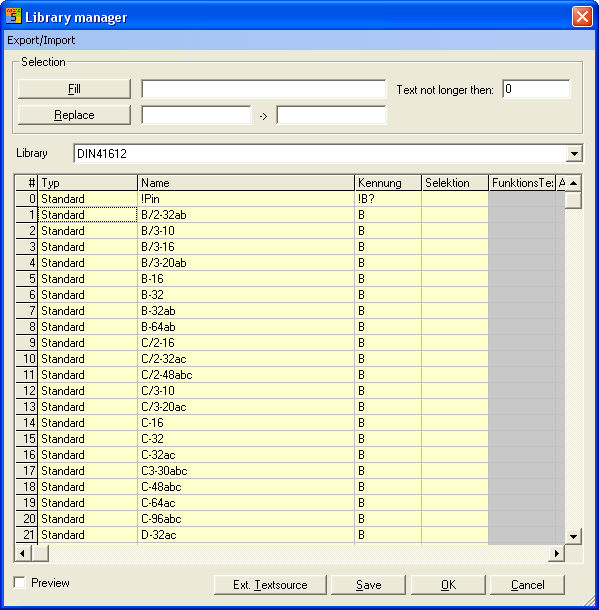
With the Library manager you have the opportunity to modify text and symbols in any kind of library without using the symbol editor.
Table
With the field 'library' and the drop-down menu you select the library you want to work with. The displayed directory is that of the active project. Every line shows a symbol.
In yellow fields can be edited in grey fields not. All symbol parameters are listed in columns as well as the first 16 text and user 1-16 which are belonging to the symbol.
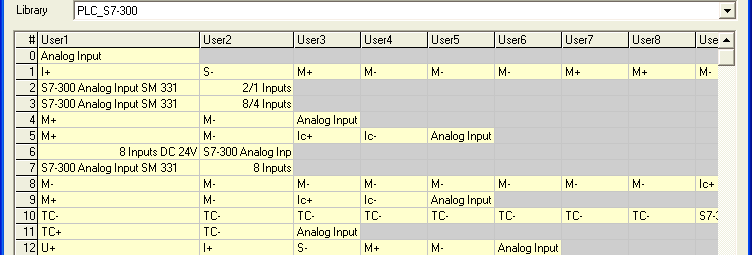
The Library manager owns a preview which always display a selected symbol. Multi selection can you get with the pushed shift key and drawing a window with the left mouse. You can select a single field or a window.
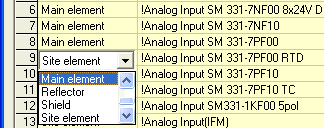
The column Type means the symbol type which can be modified with the belonging drop-down menu. Double click in the desired field and allocate type.
Make a double click in the desired field and it changes to white and the cursor is shown to fill in the new value.
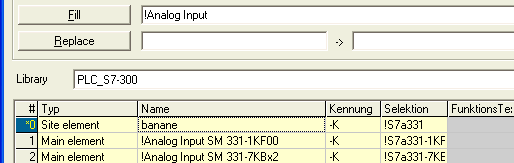
Button Fill transfers the inputted data, right of Fill, to the marked fields (no double click!).
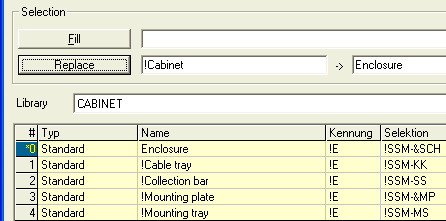
Button Replace: the text which is filled in the 1. Field is replaced with the 2. Field.
The modified lines are marked.
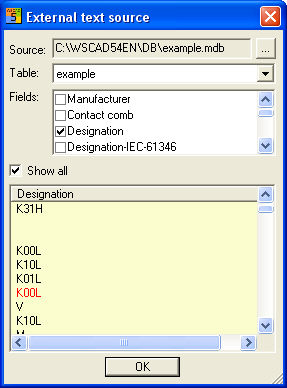
External Text source
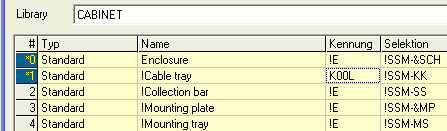
With this dialog you load external text. Then copy the desired text to selected fields (e.g. drag and drop).
Export/Import
All marked fields can be exported in one action *.csv or *.mdb file or data base. The columns are created automatically.
Export to CSV
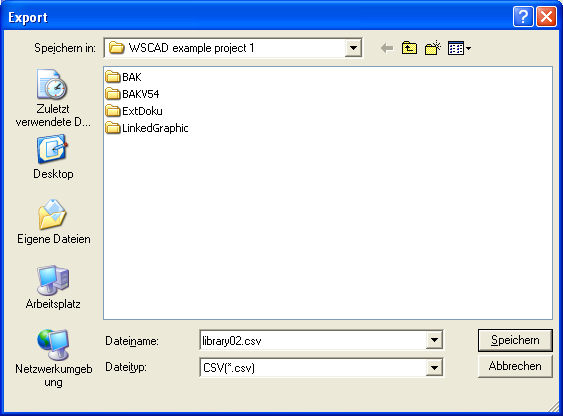
Export to CSV need only the file name.
Export to ACCESS
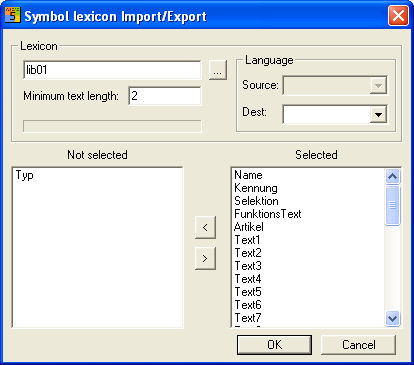
Export to ACCESS needs the selection of columns which should be exported. Output language is German. Starting with button '...' and define file name.