 The 'Rotate/Mirror' command is used to rotate an element through 90º, or to mirror
the element about the 'X' or 'Y' axis.
The 'Rotate/Mirror' command is used to rotate an element through 90º, or to mirror
the element about the 'X' or 'Y' axis.
The 'Rotate/Mirror' command is used to rotate an element through 90º, or to mirror
the element about the 'X' or 'Y' axis.
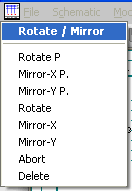
The commands can also be used in conjunction with each other e.g. rotate 90º and then mirror. After selecting the 'Rotate/ Mirror' command and identifying an element(s), a menu appears from which you can select the desired action.
Hint
You can use Rotate / Mirror for single elements or components
Here the Mirror-X P. and Mirror Y P. operate in the same way as for other elements and that is that the rotation point is determined by the position of the cursor. With the Mirror-X and Mirror Y commands the mirroring process takes place about the center point of the component and does not require any input to determine the mirroring point. This can be useful as the position of the component doesn't change.
Note
We recommend that you use point-related Rotate/Mirror commands
In both cases when a component is mirrored, the location of the text associated with the component is mirrored, but the text maintains the correct orientation (i.e. the text is not generated backwards). When a component is rotated, the text maintains either a horizontal orientation or a vertical orientation rotated 90º counter-clockwise (i.e. text is not generated up-side-down or vertical to the right).
Text that was written using 'Draw - Text', can be rotated in 90º steps, but not mirrored, and the text will not maintain a correct orientation.
TIP
Be careful when using the 'Rotate/Mirror' command as the component pins may not fall on grid points after the change. This would then make connections more difficult.
See also