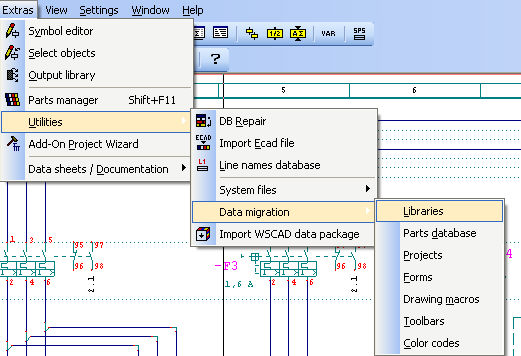
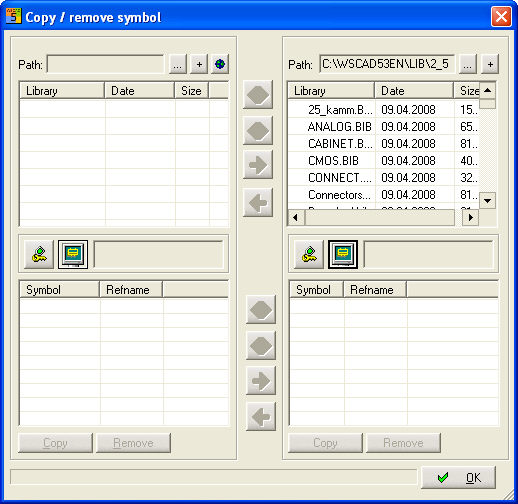
The instruction Extras / Utilities / Data migration / Libraries starts the dialogue, which is to simplify you the assumption of the symbols. The symbols of the current library can be copied into another library. Here you can compare the contents of 2 libraries.
Tip
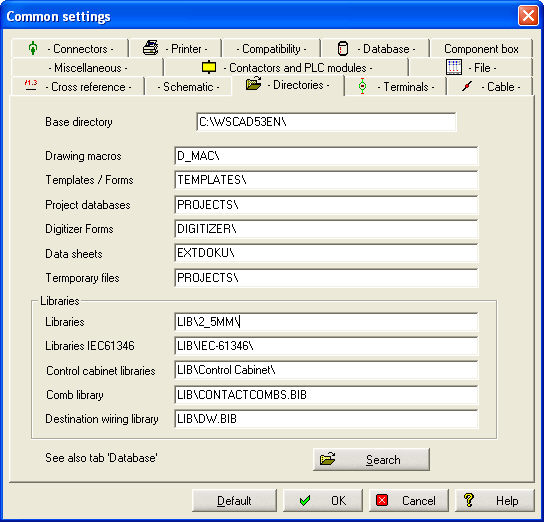
The libraries must be in the same directories which are used in the settings
See also
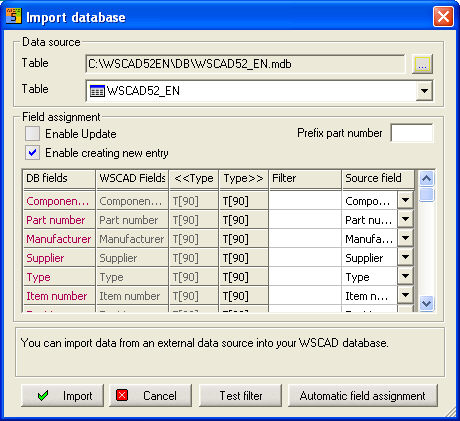
Starting from the version WSCAD 4.1 an ACCESS data base was used. Here you can import datasets in two ways, completely as well as selective. It is possible to import ACCESS data, CSV data and DATANORM 4.0 files. Select the menu item Extras / Utilities / Data migration / Parts Database. The previous version recognized during the setup is analyzed and their part data base is set as source data base.
If you like to continue to work with the data records from your past Dbase part data base, then ask our support. Tel +49 8131 362799 and email support@wscad.com
See also
Data transfer from outside -> WSCAD
Data transfer into the WSCAD database
WSCAD 4.x and 5.x users can transfer their previously existing projects from previous versions all together with one action to the new project manager. The result is the same as if each project was transferred individually.
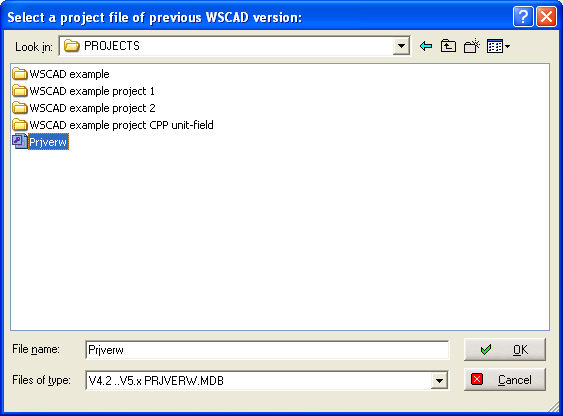
For this purpose, you have to activate the project manager menu item Project / Import Project data from 4.x in order to open the Windows standard dialog for opening a file.
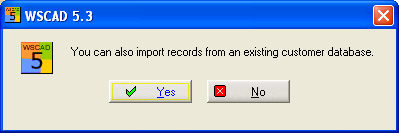
Confirm the information concerning the customer database if you wish.
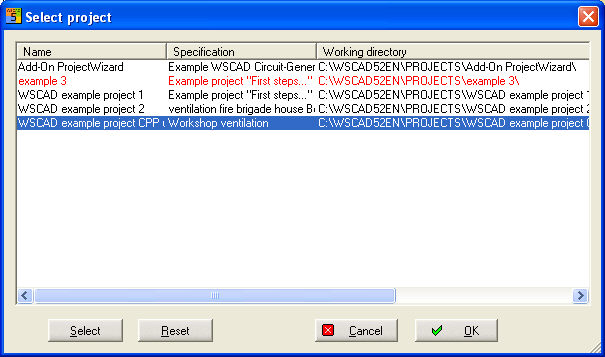
A selection list is now displayed in which you select the projects you wish to transfer with a double click or with the "Select" button. Multiple selection is also possible. "Reset" cancels the selections, and you continue with OK.
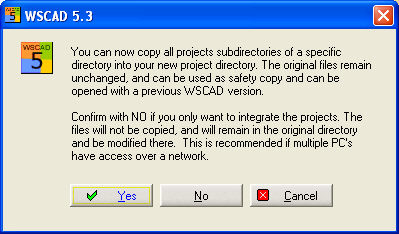
Afterwards, you can decide in a further information window if the projects are to be copied completely to the new project directory (YES) or if the (old) projects shall remain in their current storage location (NO – in this case, this area on the hard disk must not be deleted).
Note
Identical projects (same designation) are not copied.
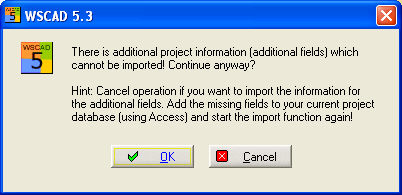
If there are fields in the project data of the old PM which do not exist in the current PM, another information dialog is displayed at this point.
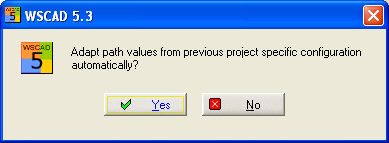
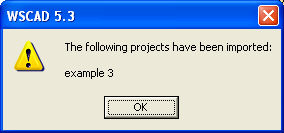
If you want to import old forms, then you select the menu option Extras/Utilities/Data migration/Forms.
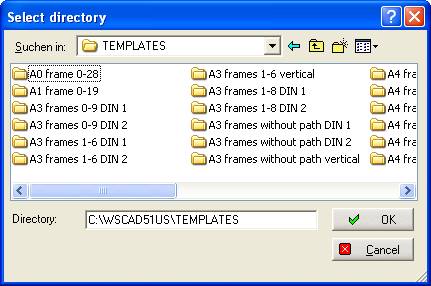
The source directory is loaded. If you confirm to here OK, then the complete files are copied into current directory.
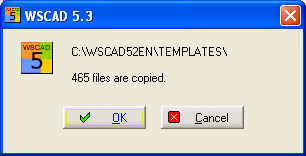
The new templates are saved in their own sub directory.
Choose the menu item Extras/Utilities/Data migration/Drawing macros.
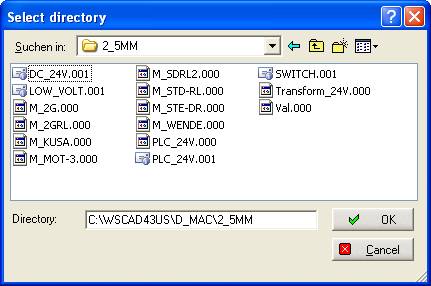
You see the source directory of the old drawing macros. Press OK the all files will copied into the new directory.
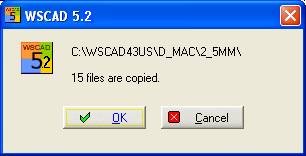
You’ll get a message box with the number of files which are copied.
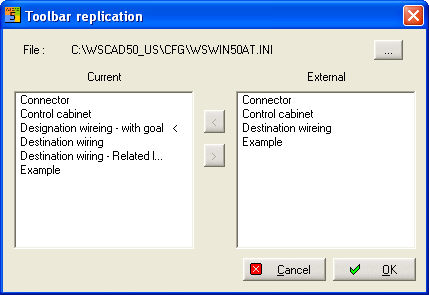
Select the menu item Extra/Utilities/Data migration/Toolbars to import all toolbars in the newer version. On the right side you see all external toolbars. At the left side you see the current toolbars.
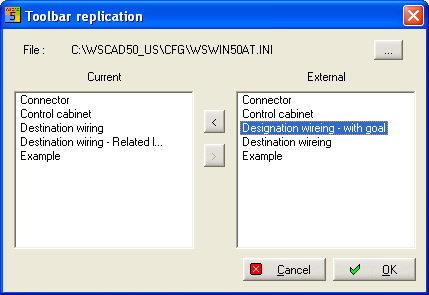
With a double click you make a copy of the toolbar from External to Current or the otherway round. You can also use the small arrow’s.
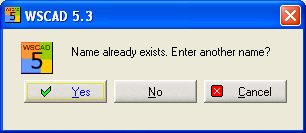
If an toolbar name already exists then you’ll get a message where you can enter a newer
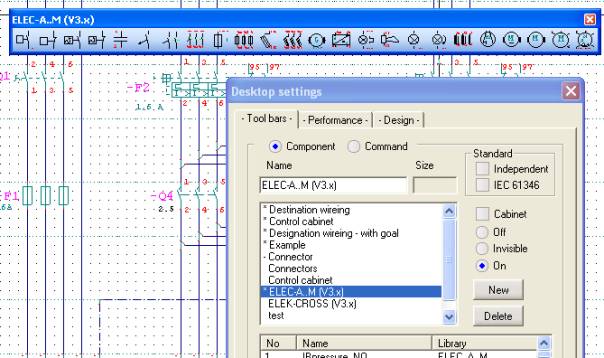
When you want to make the toolbars visible then you have to change Settings/Desktop set toolbar On .
To transfer old color codes or connection codes to the new WSCAD version use that menuitem Extras / Utilities / Data migration / Color Codes . It opens a file dialogue to select the Conductors.txt or Connector Pins.txt or WSCAD-Codes.MDB with the arrow Files od type.
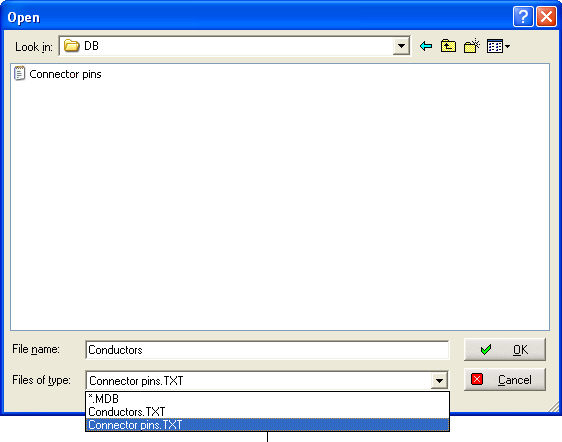
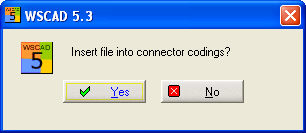
The contents of each file will be transferred into the WSCAD-Codes.MDB .